CDB Object Storage organizes files into buckets. The built-in file manager handles uploading and organizing files, with controls for public access and lifecycle policies.
Bucket creation
1
Open the bucket list
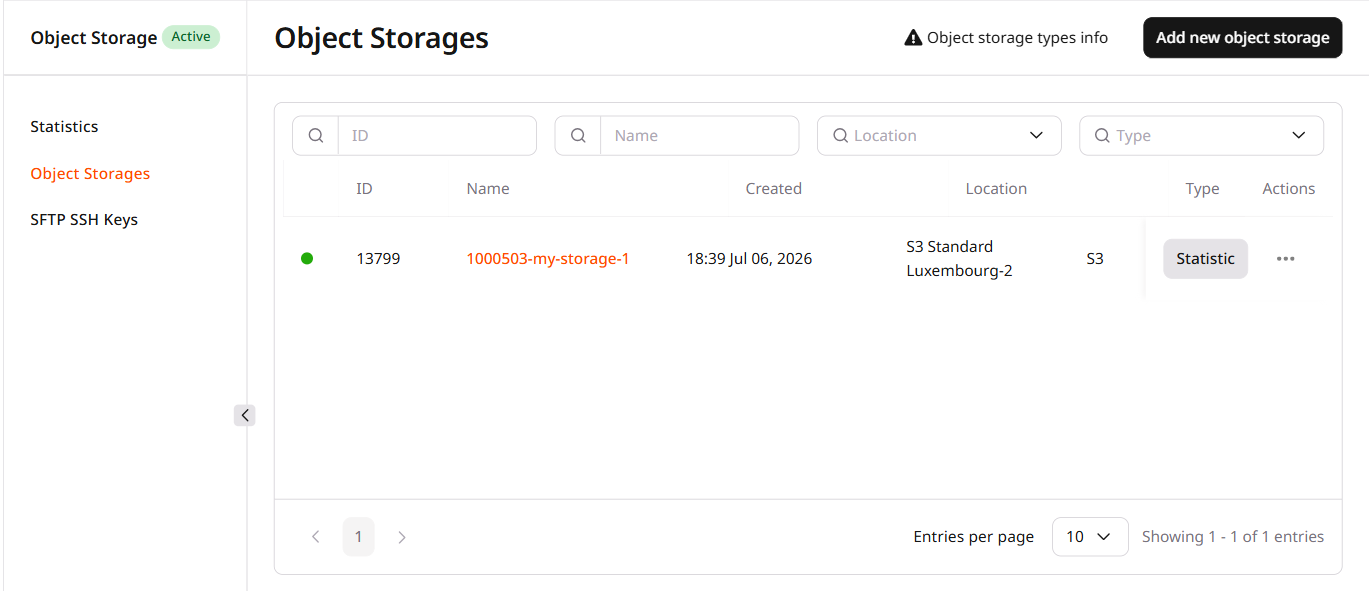
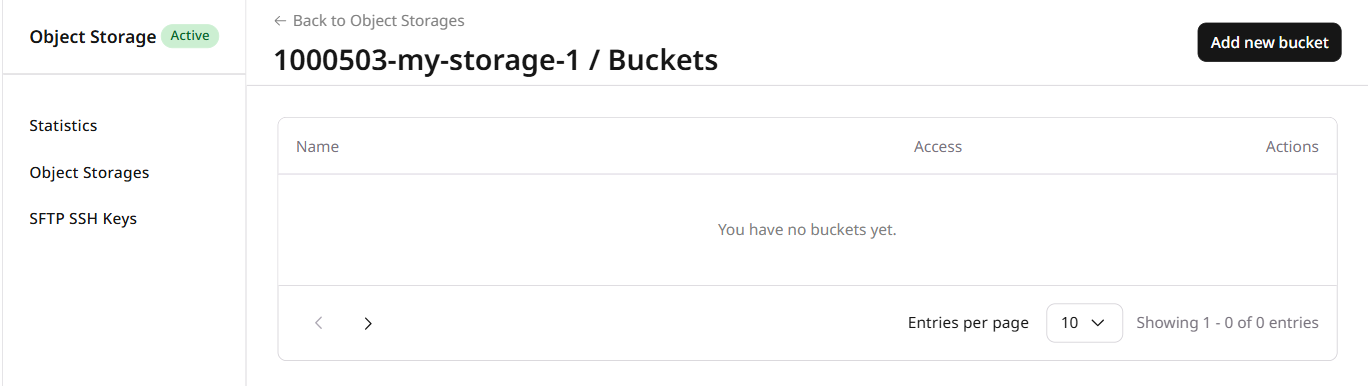
Navigate to the CDB Technical Web Portal > Storage > Object Storage and click the relevant storage name. Alternatively, open the storage's three-dot menu and select Buckets.
2
Click Add new bucket
3
Name the bucket
In the dialog that appears, enter a name that meets the following criteria:
3–63 characters.
Lowercase only.
No underscores, trailing dashes, consecutive dots, or a mix of dots and dashes — these conflict with DNS notation rules.
Unique across the entire CDB Object Storage system. A This bucket name already exists. Please use a different name error appears if the name is taken.
4
Click Create
📝
Avoid using sensitive information in the bucket name. The bucket name appears in object URLs and is publicly visible.
The new bucket appears in the list once created. The following sections cover how to upload and manage files, control public access, and configure lifecycle policies.
File manager
The file manager is a browser-based interface for managing files in a bucket. Two setup steps are required before use: configuring CORS and authenticating with S3 credentials.
CORS setup
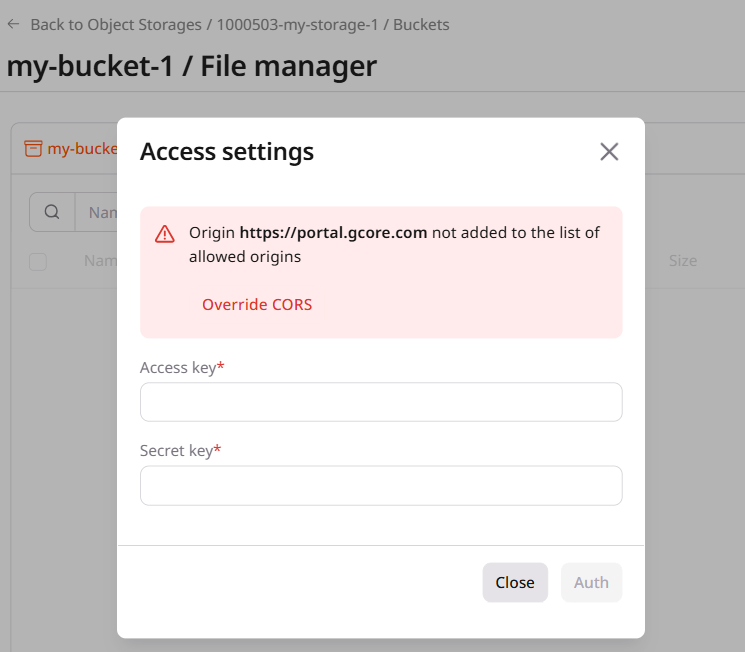
To access the file manager, add https://portal.cdb-staging.cdn.orange.com to the bucket's CORS policy. This is a one-time setup per bucket.
Click the bucket name to open the access settings dialog, then click Override CORS.
📝
Configure CORS individually for each bucket.
The API also supports multiple allowed origins beyond https://portal.cdb-staging.cdn.orange.com.
Authorization
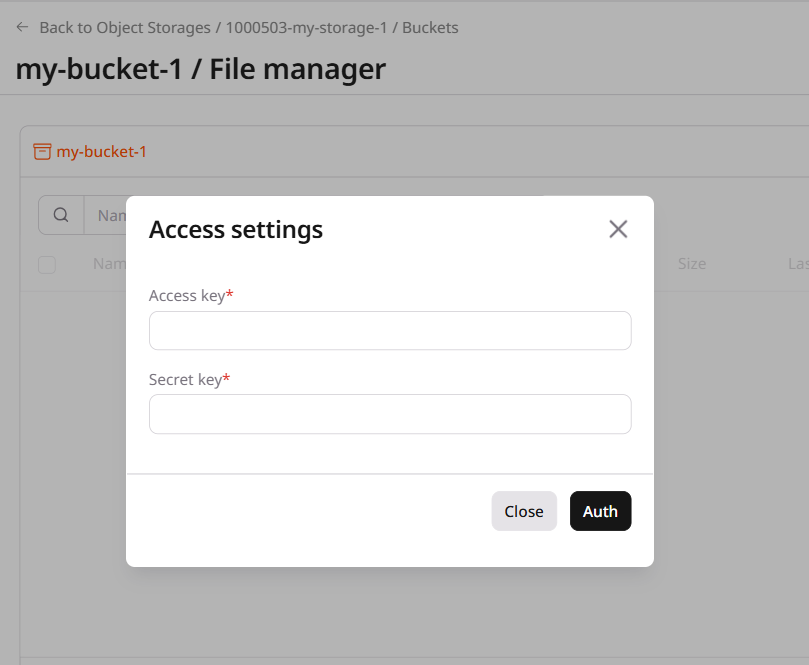
To authorize, click the bucket name, enter the Access key and Secret key, then click Auth.
Alternatively, access the file manager from the bucket's three-dot menu by selecting File manager.
Adding folders
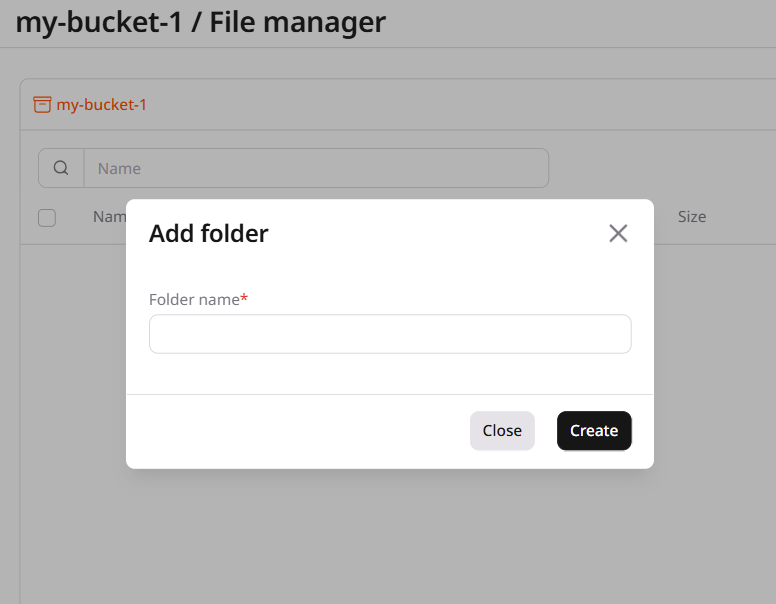
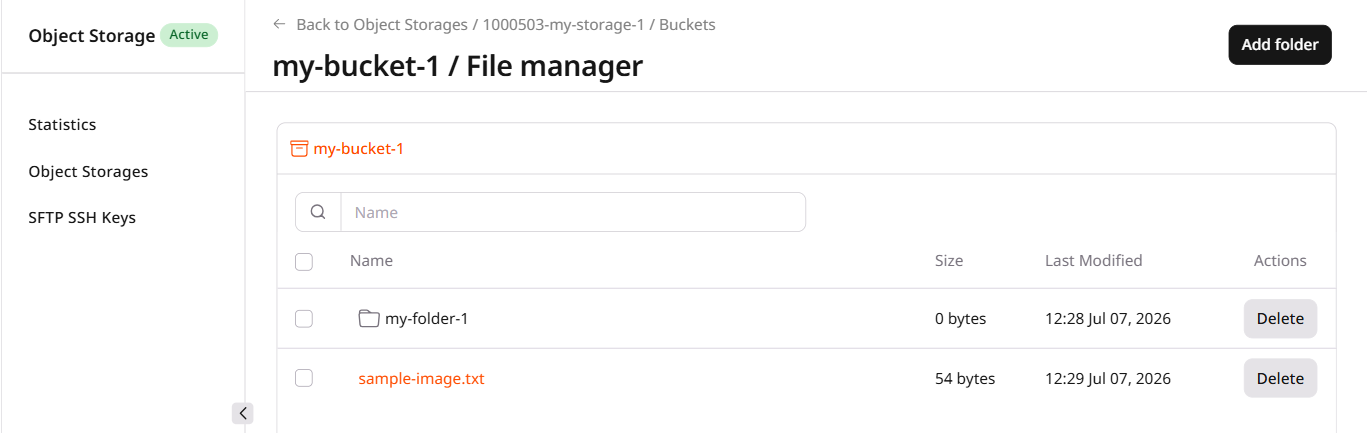
After authorizing, click Add folder. Enter a name in the field and click Create.
Each folder displays its last modification date. Click a folder name to open it.
Uploading files
To upload files, authorize and click Select and upload file(s) either in the bucket root or within a specific folder. Then, follow the standard upload process.
Deleting folders and files
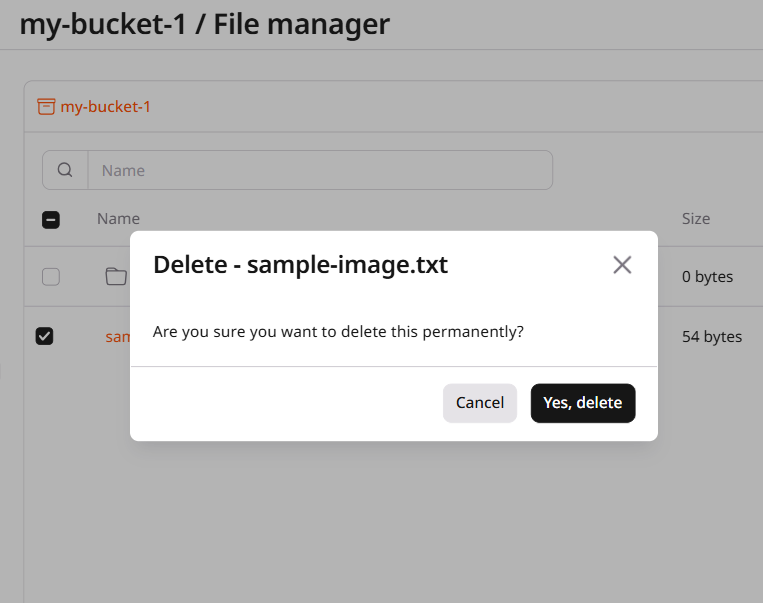
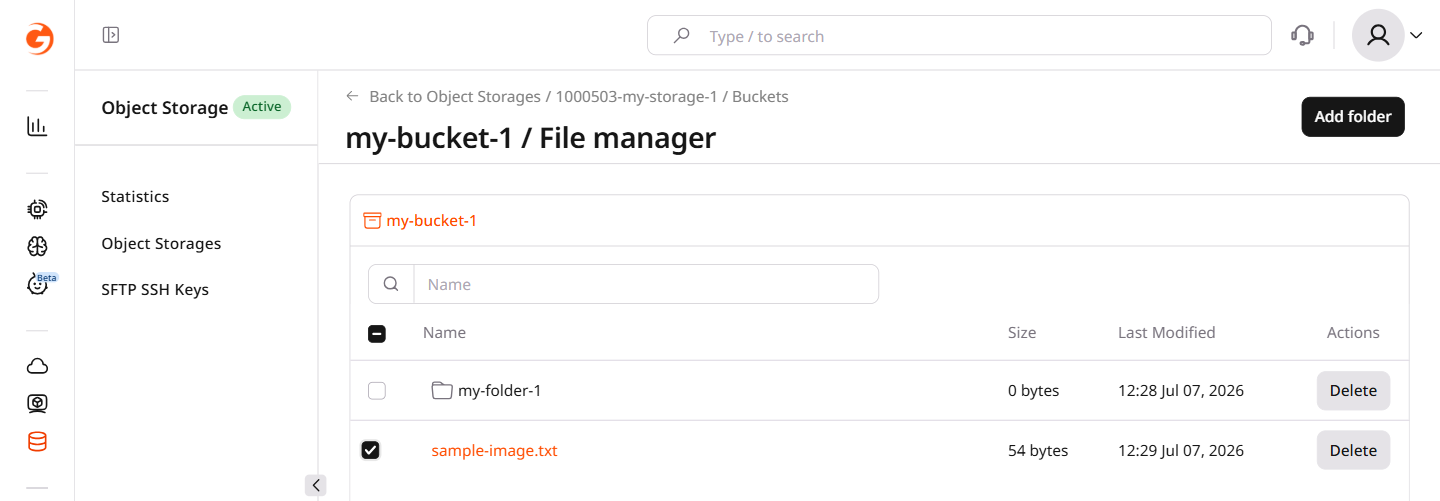
To delete folders or files, authorize and click Delete next to the desired object. Alternatively, select the checkboxes next to the object names and click Delete selected.
📝
Deleting a folder removes all files nested within it.
Copying file URLs
To copy file URLs, authorize, select objects, and click the relevant button: Copy S3 URL or Copy URL.
The links for the file image 3972.png look like this:
Without public HTTP access enabled, the direct file URL returns a 403 error.
Managing access
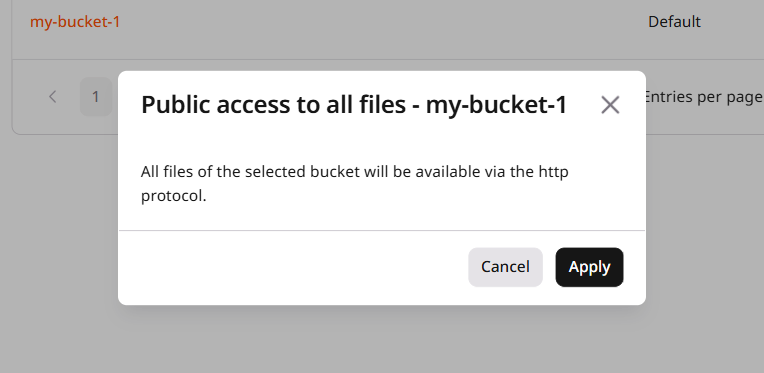
Enable public HTTP access to make files directly accessible by URL or to serve them through a CDN origin. Click the three-dot menu on the bucket row, select Public access to all files, and confirm by clicking Apply.
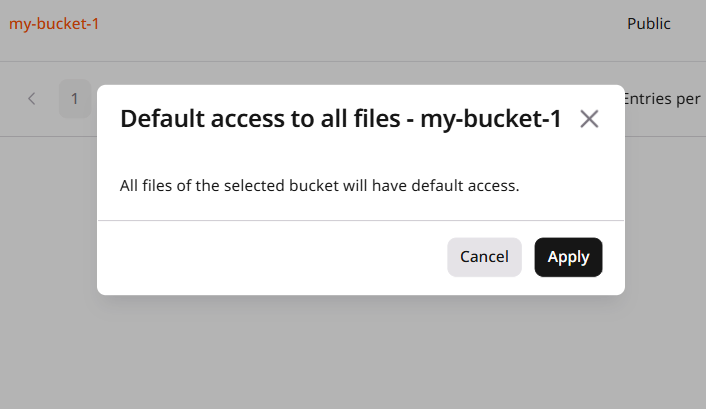
To revert to private access, click the three-dot menu on the bucket row and click Default access to all files.
Adding lifecycle policy (for S3 in Luxembourg only)
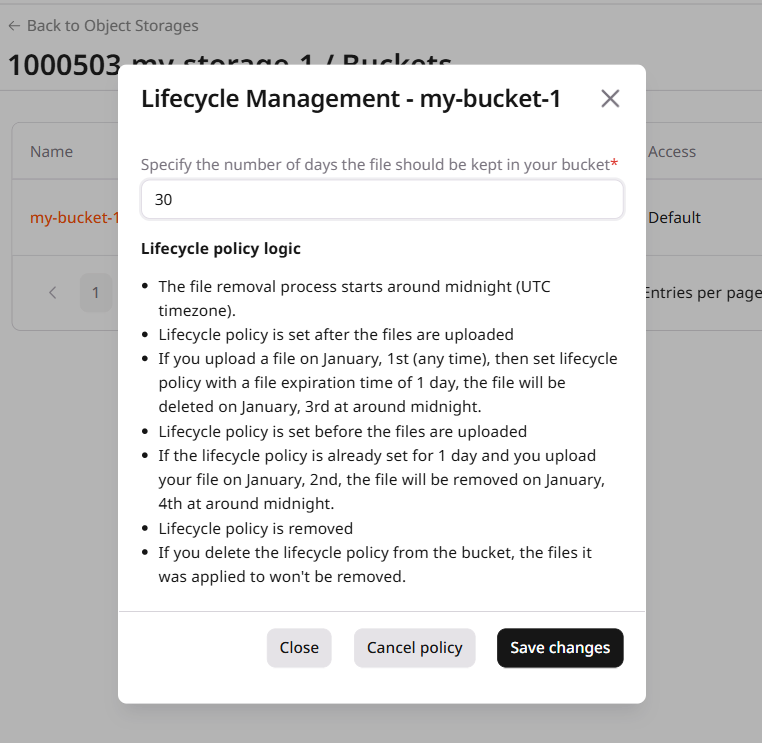
Click the three-dot menu on the bucket row and select Lifecycle Management. Set the retention period and click Save changes.
To remove an existing policy, click Cancel policy.
For other storage locations, configure lifecycle policies with the AWS CLI.
Bucket operations within an S3 storage — creation, CORS rules, public access, and lifecycle policies — are managed through the buckets endpoint. Each request requires the numeric storage ID, returned when creating storage or available from the storage list.
Bucket names must be globally unique across the CDB Object Storage system, 3–63 lowercase characters, with no underscores, trailing dashes, consecutive dots, or combinations of dots and dashes.
Returns all buckets in a storage, including their current CORS, lifecycle, and public access settings.
import os
from gcore import CDB

client = CDB()
storage_id = int(os.environ["STORAGE_ID"])

buckets = client.storage.object_storages.buckets.list(storage_id)
for b in buckets:
    print(f"{b.name}  is_public={b.policy.is_public if b.policy else False}")
The API returns the updated bucket object with cors.allowed_origins set.
Enable or disable public access
Setting is_public to true allows unauthenticated downloads of all objects in the bucket by direct URL. Set to false to require S3 credentials for all requests.
import os
from gcore import CDB

client = CDB()
storage_id = int(os.environ["STORAGE_ID"])

# Enable public access
bucket = client.storage.object_storages.buckets.update(
    "my-bucket",
    storage_id=storage_id,
    policy={"is_public": True},
)
print(f"is_public={bucket.policy.is_public}")

# Revert to private
bucket = client.storage.object_storages.buckets.update(
    "my-bucket",
    storage_id=storage_id,
    policy={"is_public": False},
)
print(f"is_public={bucket.policy.is_public}")
The API returns the updated bucket object with policy.is_public reflecting the new value.
Set lifecycle policy
Lifecycle policies automatically delete objects after a set number of days. This feature is available for S3 storage in Luxembourg only. Set expiration_days to a positive integer to enable, or to 0 to remove an existing policy.
Parameter
Required
Description
lifecycle.expiration_days
Yes
Days before objects are deleted. Use 0 to remove the rule.
Declare S3 buckets with CORS rules, public access policy, and lifecycle settings using the CDB Terraform provider v2.
Create bucket
Declares a bucket in an existing S3 storage. CORS rules, public access, and lifecycle policy are optional — omit any block to leave that setting unconfigured.
resource "gcore_storage_object_storage_bucket" "example" {
  storage_id = var.storage_id
  name       = "my-bucket"

  cors = {
    allowed_origins = ["https://portal.cdb-staging.cdn.orange.com"]
  }

  policy = {
    is_public = false
  }

  storage_object_storage_bucket_lifecycle = {
    expiration_days = 30
  }
}

variable "storage_id" {
  type = number
}
terraform apply
Update bucket settings
Edit any field in the resource block and run terraform apply. To remove the lifecycle policy, omit the storage_object_storage_bucket_lifecycle attribute.
resource "gcore_storage_object_storage_bucket" "example" {
  storage_id = var.storage_id
  name       = "my-bucket"

  cors = {
    allowed_origins = ["https://portal.cdb-staging.cdn.orange.com", "https://example.com"]
  }

  policy = {
    is_public = true
  }

  # Omit storage_object_storage_bucket_lifecycle to remove the lifecycle policy
}
terraform apply
Delete bucket
Remove the resource block — Terraform deletes the bucket and all its objects on the next apply.
# Remove or comment out this block:
# resource "gcore_storage_object_storage_bucket" "example" {
#   storage_id = var.storage_id
#   name       = "my-bucket"
# }