CDB Object Storage offers three storage types, each suited to different workloads and access protocols:
S3 Standard — general-purpose S3-compatible storage for backups, content delivery, and most workloads
S3 Fast — high-performance S3-compatible storage optimized for AI/ML workloads, IoT telemetry, and latency-sensitive applications (available in Sines-2, Sines-3, and London-2)
SFTP — legacy file-based storage accessed via SFTP protocol, with the same pricing and billing terms as S3 Standard
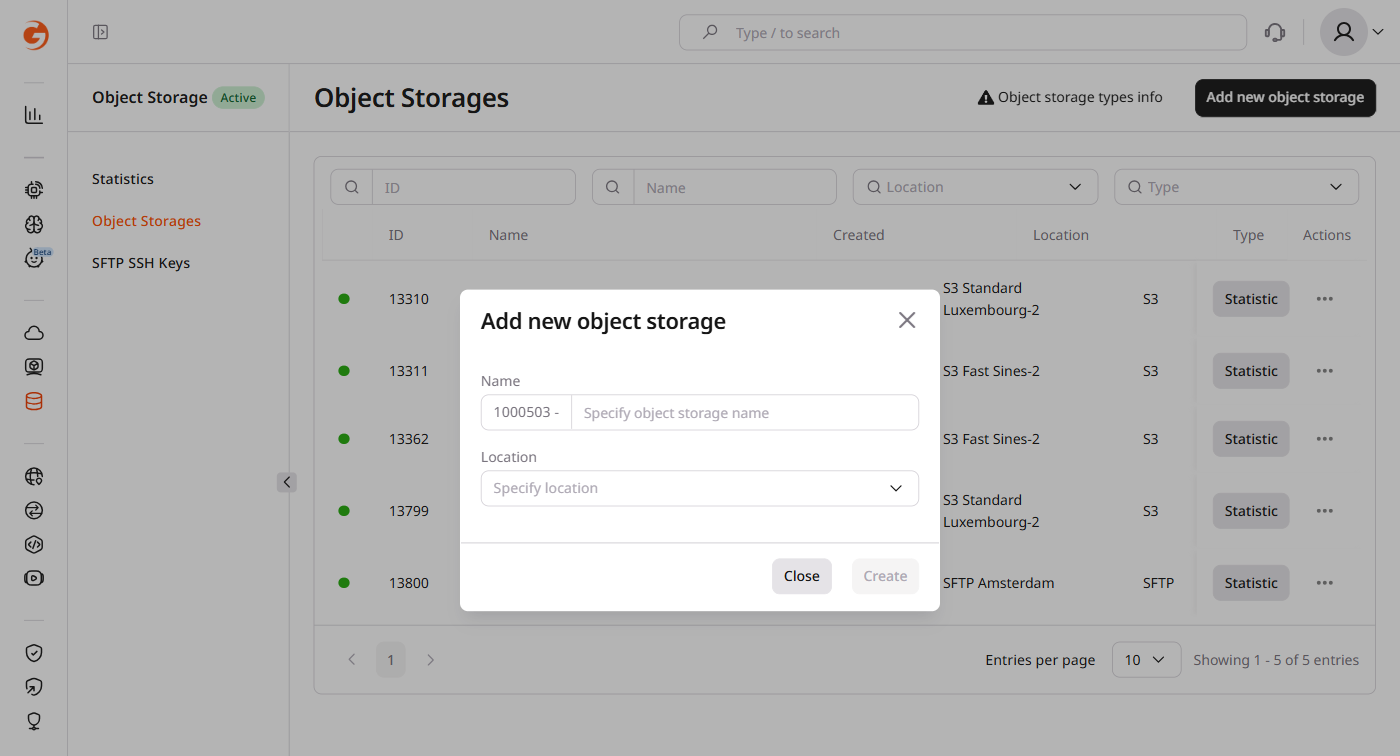
Click Add new object storage in the top-right corner.
3
Enter storage details
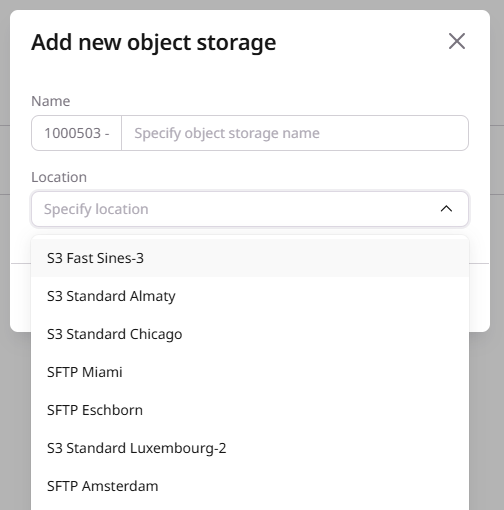
In the dialog, enter the storage name and select a location. The location name shows the storage type and data center — S3 Standard Luxembourg-2 or SFTP Amsterdam. SFTP locations appear and disappear based on available capacity.
ℹ️
A maximum of 3600 storages can be created per account.
S3 Standard and S3 Fast
S3 Standard and S3 Fast use the same creation flow — the only difference is the location selected in the dropdown. Each S3 storage supports up to 1000 buckets and 10 million objects per bucket. For optimal performance, keep under 100K objects per bucket and distribute data across multiple buckets.
In the Location dropdown, select an S3 Standard or S3 Fast location, then click Create at the bottom of the dialog.
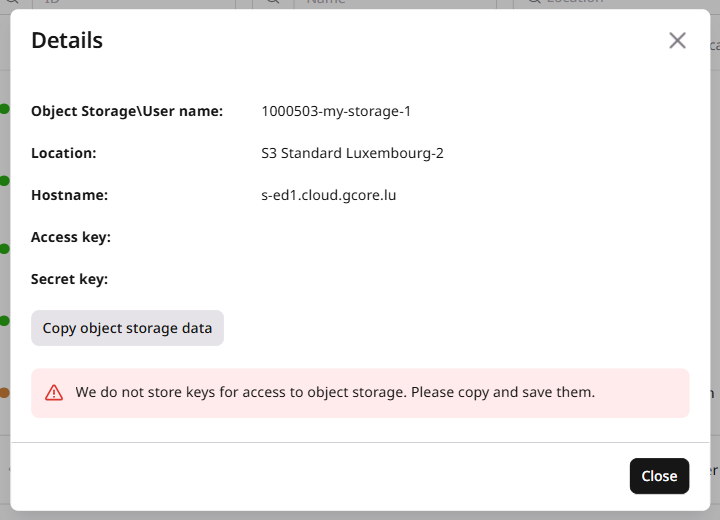
A Details dialog opens immediately, showing the storage credentials: access key, secret key, hostname, and location. Click Copy object storage data to copy all credentials at once. Save the keys — regenerating them invalidates the existing credentials.
S3 management options
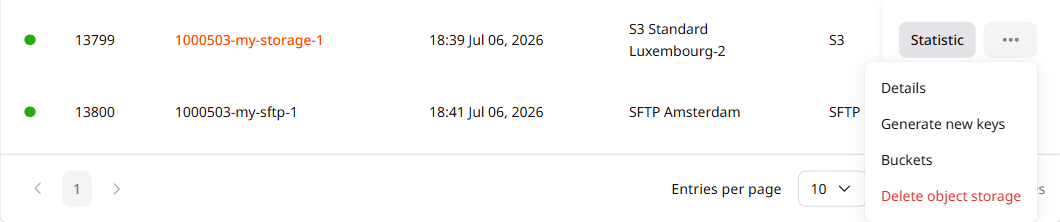
The created storage appears in the storage list. To manage it, click ... (three dots) next to the storage name and select an option:
Option
Description
Details
View the access key, secret key, hostname, and location.
Generate new keys
Replace the current access and secret keys. A confirmation dialog warns that the existing key will be deactivated. Click Yes to proceed; the new keys appear in the Details dialog.
Permanently delete the storage and all its contents. This action cannot be undone.
SFTP storage
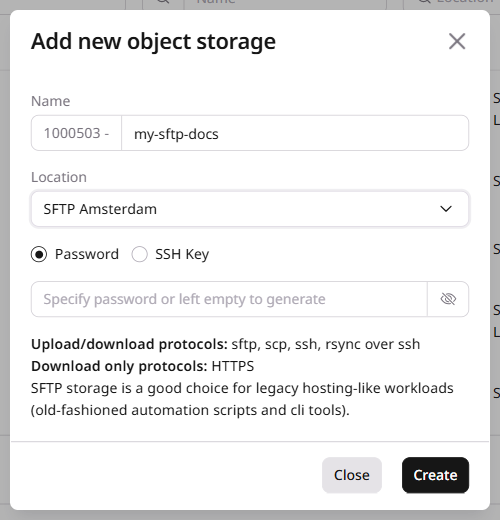
SFTP storage requires choosing an authentication method during creation — password or SSH key. Both can be managed after creation.
1
Select a location
In the Location dropdown, select an SFTP location.
2
Enter a name
Enter the storage name in the Name field.
3
Select authentication method
Select Password or SSH Key as the authentication method. Leave the password field empty to generate one automatically.
4
Create
Click Create at the bottom of the dialog.
SFTP management options
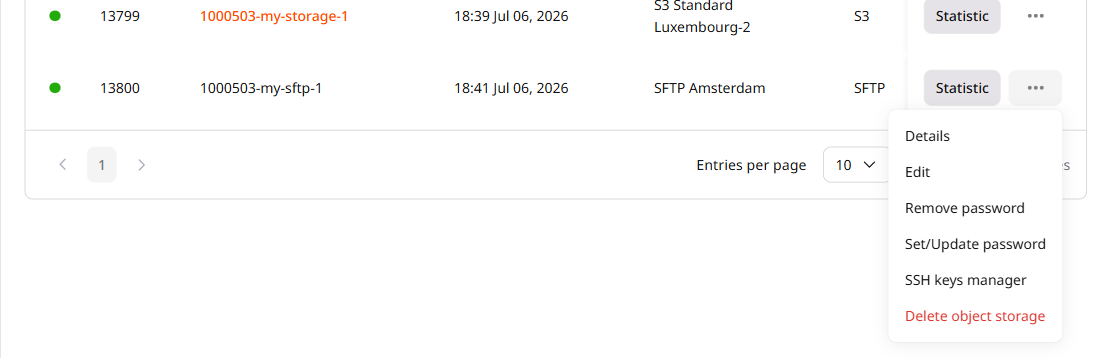
After creation, manage the SFTP storage by clicking ... (three dots) next to the storage name and selecting an option:
Option
Description
Details
View the hostname and connection path. Use port 2200 to connect via SFTP.
Edit
Configure the server alias and the HTTP Expires response header for files served over HTTP. Configuration details are in the Edit dialog section.
Set/Update password
Set or replace the password used to authenticate SFTP connections.
Remove password
Remove password authentication from the storage. After removal, only SSH key authentication is accepted.
SSH keys manager
Add or remove SSH keys for SFTP authentication. Up to five keys are allowed per storage.
Delete object storage
Permanently delete the storage and all its contents. This action cannot be undone.
Edit dialog
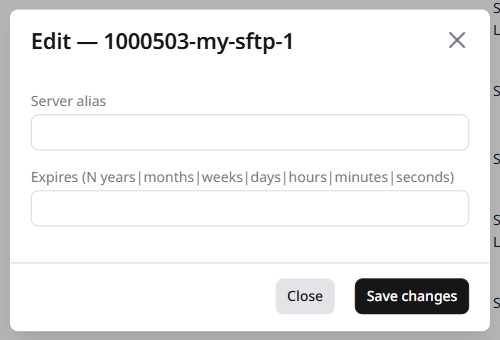
The Edit dialog for SFTP storage has two fields. Open it by clicking ... > Edit next to the storage name.
In the Server alias field, enter a domain name (subdomains are supported), then add a CNAME record in DNS settings: <server_name>.<host>. For a storage named 12345-test in Amsterdam, the record would be CNAME 12345-test.ams.origin.gcdn.co.
In the Expires field, set the value of the HTTP Expires response header for files served over HTTP. Use the format N years|months|weeks|days|hours|minutes|seconds. The default is one year.
Storage status indicator
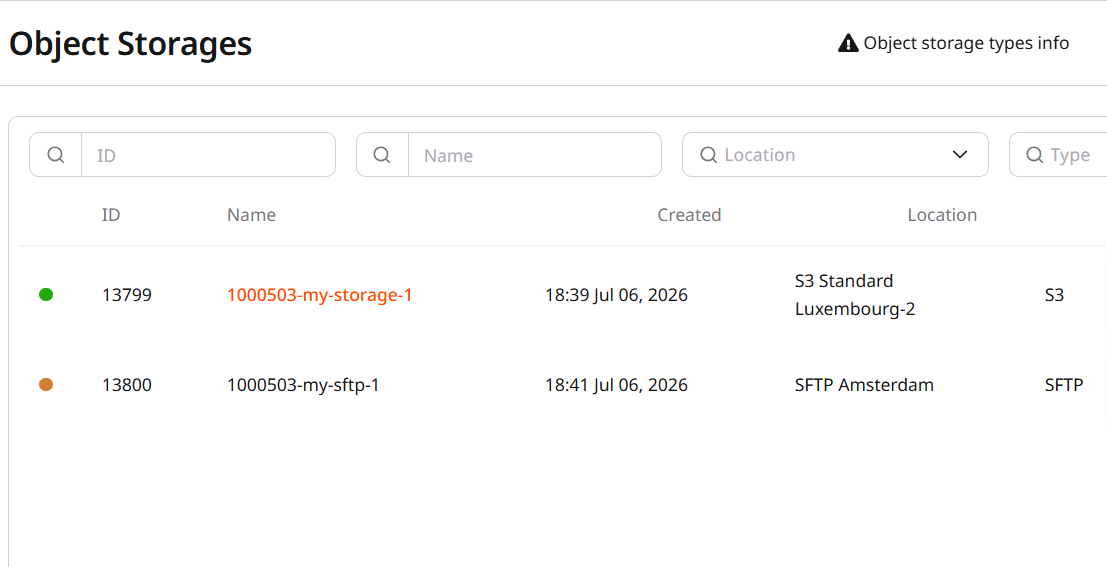
Each storage row shows a colored circle to the left of the ID.
After creation or a settings update — adding keys or changing a password — the storage enters a processing state shown by an orange circle. A green circle indicates the storage is ready.
S3-compatible and SFTP storages are provisioned with a single API call. For S3 storage, the secret key is returned only at creation time and when a new access key is created — it cannot be retrieved later.
The scripts below list available locations, create an S3 storage, and print the credentials.
from gcore import CDB

client = CDB()

# Step 1. List available locations and select an S3-compatible one
locations = client.storage.locations.list()
s3_location = next(loc for loc in locations if loc.type == "s3_compatible")

# Step 2. Create S3 storage — access key and secret key are returned only here
storage = client.storage.object_storages.create(
    location_name=s3_location.name,
    name="my-storage",
)
print(f"Storage ID: {storage.id}")
print(f"Endpoint:   {storage.address}")
print(f"Full name:  {storage.full_name}")
print(f"Access key: {storage.access_keys[0].access_key}")
print(f"Secret key: {storage.access_keys[0].secret_key}")
package main

import (
    "context"
    "fmt"
    "log"

    gcore "github.com/G-Core/gcore-go"
    "github.com/G-Core/gcore-go/storage"
)

func main() {
    client := gcore.NewClient()
    ctx := context.Background()

    // Step 1. List available locations and select an S3-compatible one
    locations, err := client.Storage.Locations.List(ctx, storage.LocationListParams{})
    if err != nil {
        log.Fatalf("list locations: %v", err)
    }
    var locationName string
    for _, loc := range locations.Results {
        if loc.Type == "s3_compatible" {
            locationName = loc.Name
            break
        }
    }

    // Step 2. Create S3 storage — access key and secret key are returned only here
    s3, err := client.Storage.ObjectStorages.New(ctx, storage.ObjectStorageNewParams{
        Name:         "my-storage",
        LocationName: locationName,
    })
    if err != nil {
        log.Fatalf("create storage: %v", err)
    }
    fmt.Printf("Storage ID: %d\n", s3.ID)
    fmt.Printf("Endpoint:   %s\n", s3.Address)
    fmt.Printf("Full name:  %s\n", s3.FullName)
    fmt.Printf("Access key: %s\n", s3.AccessKeys[0].AccessKey)
    fmt.Printf("Secret key: %s\n", s3.AccessKeys[0].SecretKey)
}
Step-by-step
Each step below explains what the call does, which parameters matter, and what the response looks like.
Rotate access keys
Each S3 storage supports up to two active access keys, which allows rotating credentials without downtime — create the new key first, update clients, then delete the old one. The secret key is returned only when the key is created.
SFTP storage uses a different endpoint and requires a password_mode field. Setting it to auto generates a random password returned in the creation response — the only time it is visible. Use set to provide a custom password, or none to disable password authentication and use SSH keys instead.
Provision S3-compatible and SFTP storages declaratively using the CDB Terraform provider v2.
Create S3 storage
Declares an S3 storage and an optional additional access key for zero-downtime credential rotation. The storage is provisioned with one key automatically; gcore_storage_access_key creates a second one.
resource "gcore_storage_object_storage" "example" {
  location_name = "luxembourg-2"
  name          = "my-storage"
}

# Optional: second access key for zero-downtime rotation
resource "gcore_storage_access_key" "extra" {
  storage_id = gcore_storage_object_storage.example.id
}

output "s3_endpoint" {
  value = gcore_storage_object_storage.example.address
}

output "s3_access_key" {
  value = gcore_storage_object_storage.example.access_keys[0].access_key
}

output "s3_secret_key" {
  value     = gcore_storage_object_storage.example.access_keys[0].secret_key
  sensitive = true
}

output "extra_access_key" {
  value = gcore_storage_access_key.extra.access_key
}

output "extra_secret_key" {
  value     = gcore_storage_access_key.extra.secret_key
  sensitive = true
}

# terraform import gcore_storage_object_storage.example '<storage_id>'
# terraform import gcore_storage_access_key.extra '<storage_id>/<access_key>'
terraform apply
Rotate access keys
Declare a new gcore_storage_access_key resource to create a second key. Once clients are updated to use the new credentials, remove the resource block for the old key and apply to delete it.
# Add a new key resource, update clients, then remove this block:
# resource "gcore_storage_access_key" "extra" {
#   storage_id = gcore_storage_object_storage.example.id
# }
terraform apply
Delete S3 storage
Remove both resource blocks — Terraform deletes the extra access key first, then the storage.
# Remove or comment out both blocks:
# resource "gcore_storage_access_key" "extra" { ... }
# resource "gcore_storage_object_storage" "example" { ... }
terraform apply
Create SFTP storage
Declares an SFTP storage with an auto-generated password. After apply, use full_name as the login username when connecting on port 2200.