FileZilla connection to SFTP storage
FileZilla is an open-source SFTP client that supports both password and SSH key authentication for connecting to CDB SFTP storage. Download and install it from the FileZilla website before proceeding.
Site Manager setup
- 1
Open Site Manager
Click the Site Manager icon in the top-left corner of the toolbar:

- 2
Create a new site
In Site Manager, click New Site:
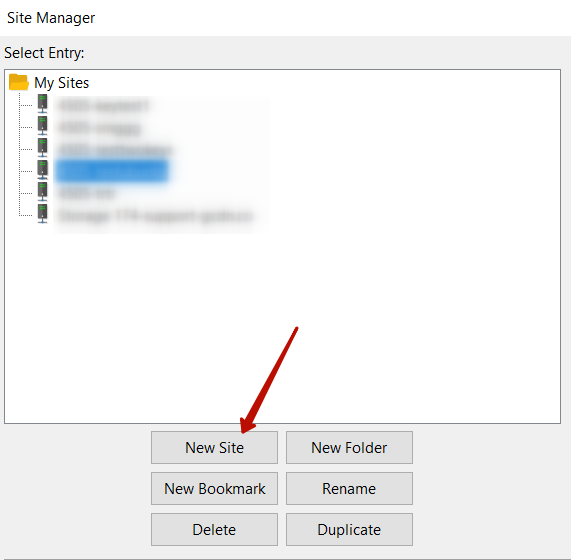
- 3
Name the site
Enter a name for the site, then open the General tab on the right.
Connection configuration
Both authentication methods use the same base configuration — only the Logon Type field and the Key file step differ:
| Field | Password | SSH key |
|---|---|---|
| Logon Type | Ask for password | Key file |
| Key file | Not required | Path to the private key file on the local machine |
Complete the General tab fields:
- 1
Set the protocol
In the Protocol field, select SFTP - SSH File Transfer Protocol.
- 2
Enter the hostname
In the Host field, enter the hostname from the Details panel in the CDB Technical Web Portal. To open it: go to Object Storages, click ... next to the storage name, then select Details.
- 3
Set the port
In the Port field, enter
2200. - 4
Set the logon type
Set Logon Type to Ask for password (password) or Key file (SSH key), as shown in the table above.
- 5
Enter the username
In the User field, enter the Object Storage\User name shown in the Details panel.
- 6
Specify the key file (SSH key only)
In the Key file field, specify the path to the private key file. An SSH key must be added to the storage beforehand.
- 7
Save and connect
Click OK to save, then click Connect to open the connection.