Release Manager
Overview
Release Manager enables controlled and alternative rollouts of new application versions on an ongoing basis. By routing a configurable percentage of traffic to a separate destination, you can safely monitor performance and stability before a full deployment. The entire process is managed through a simple interface with no custom code required.
Configuration Parameters
To enable Release Manager, you must configure the following parameters in your FastEdge application. At a minimum, ORIGIN_A and ORIGIN_B are required.
| Parameter | Description | Example |
|---|---|---|
ORIGIN_A | (Required) The hostname of the release manager origin (the new version). | new-version.myapp.com |
ORIGIN_B | (Required) The hostname of the Stable origin (the current, default version). | stable.myapp.com |
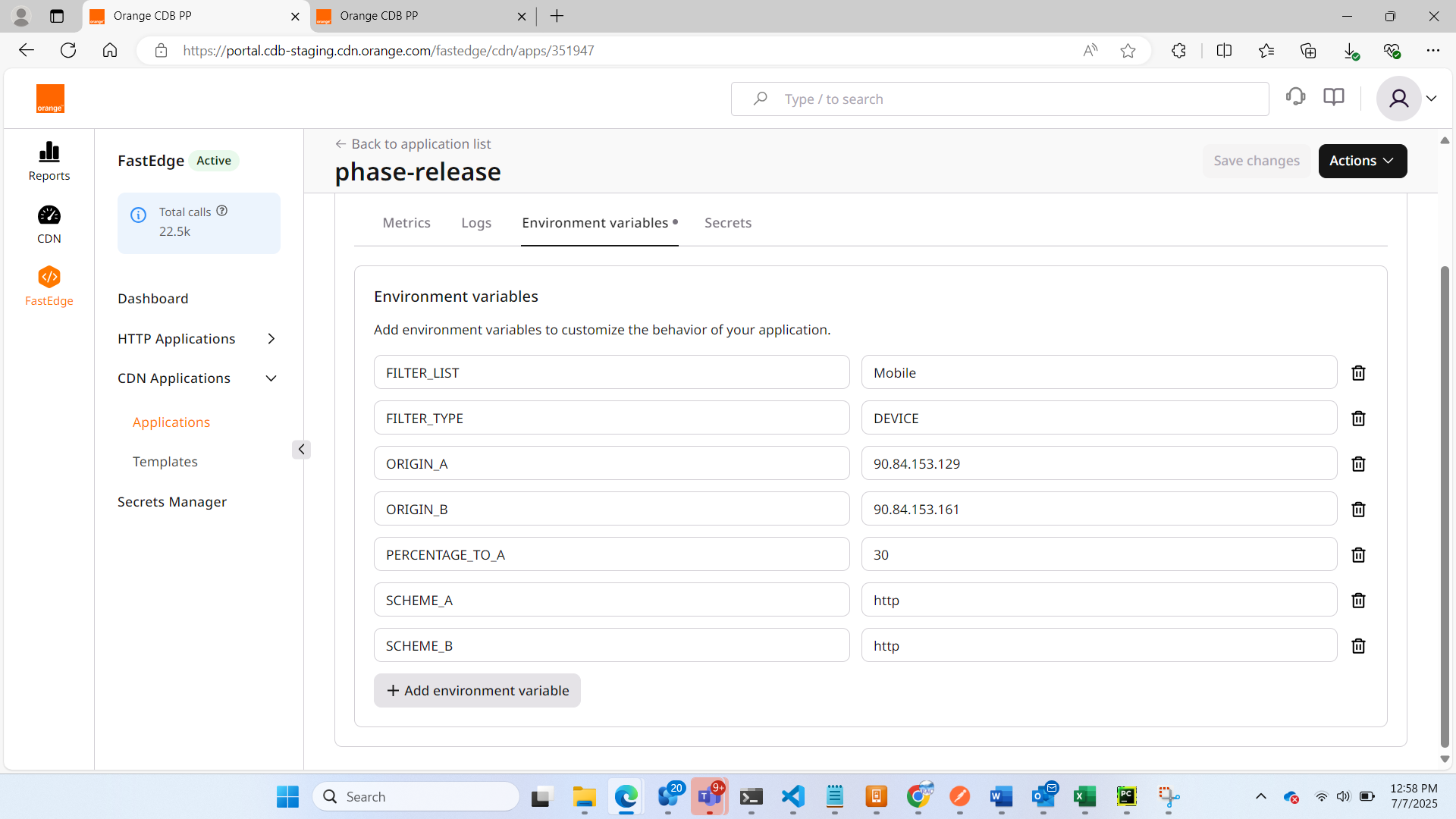
PERCENTAGE_TO_A | (Optional) The percentage of users (from 0 to 100) to be routed to ORIGIN_A. If not set or invalid, it defaults to 0. | 15 (for 15%) |
FILTER_TYPE | The type of filter you want to use. It can be one of the value (COUNTRY,ASN,DEVICE). | COUNTRY for filter by countrie |
FILTER_LIST | A comma-separated list of filter according the FILTER_TYPE value. If FILTER_TYPE value is COUNTRY, it will contain a list of list of ISO 3166-1 alpha-2 country codes. If FILTER_TYPE value is ASN, it will contain a list of ASN number. If FILTER_TYPE value is DEVICE, it will contain a list of devices. | Mobile,Tablet,Desktop for FILTER_TYPE = DEVICE |
SCHEME_A | (Optional) The URL scheme for ORIGIN_A. Can be http or https. Defaults to https. | http |
SCHEME_B | (Optional) The URL scheme for ORIGIN_B. Can be http or https. Defaults to https. | https |
Decision Logic & Request Workflow
The system follows a specific sequence of rules to determine whether a user should be routed to the release manager origin (ORIGIN_A) or the Stable origin (ORIGIN_B).
-
Prerequisite Checks:
- The system first retrieves the user's IP address (from the
X-Real-IPheader) and and one of these values (country code, asn, device) - It also verifies that
ORIGIN_AandORIGIN_Bare configured. -
Note: If any of these prerequisites are missing, the release manager logic is skipped, and the request proceeds to the default route.
- The system first retrieves the user's IP address (from the
-
Filtering by type:
- The system checks the
FILTER_TYPEvalue configured. - If
COUNTRYis set the filter will be by country. ACCEPTABLE COUNTRY FOR release manager will be country code inFILTER_LIST, others will be routed on the default route. - If
ASNis set the filter will be by asn. ACCEPTABLE ASN FOR release manager will be asn number inFILTER_LIST, others will be routed on the default route. - If
DEVICEis set the filter will be by device. ACCEPTABLE DEVICE FOR release manager will be device type inFILTER_LIST, others will be routed on the default route.
- The system checks the
-
Percentage-Based Routing:
- The system uses the
PERCENTAGE_TO_Avalue to decide if the user should be part of the phased release. - A deterministic hash is calculated based on the user's IP address, resulting in a number between 0 and 99.
- If this number is equal to or less than the
PERCENTAGE_TO_Avalue, the user is routed to the release manager origin (ORIGIN_A). - Otherwise, the user is routed to the Stable origin (
ORIGIN_B).
- The system uses the
Why use IP Hashing? Hashing the IP address ensures that a specific user will consistently be sent to the same origin on every request. This prevents a jarring experience where they might see the old version on one page load and the new version on the next.
How to Implement Release Manager
- Create an application FastEdge:
release manager(seee picture below). a. Upload your binary (see picture below)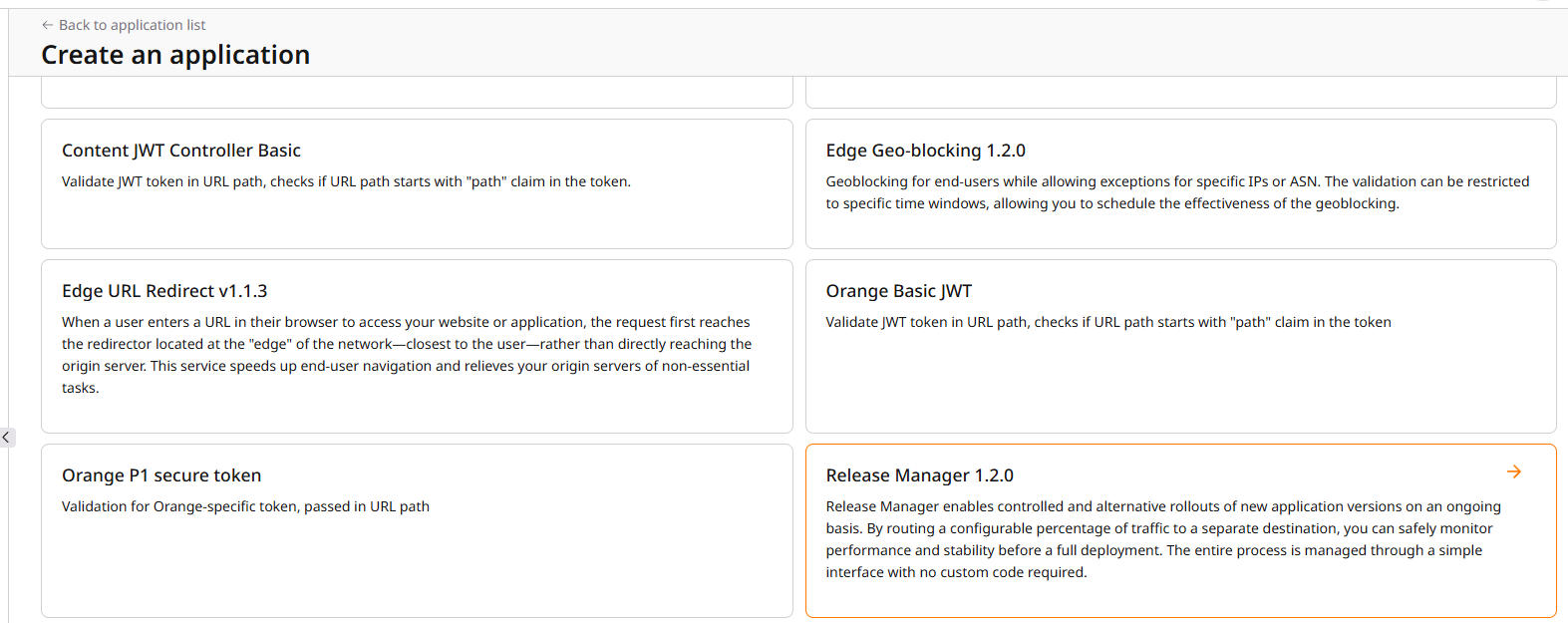 b. Enter your application name and create your env variables (see picture below)
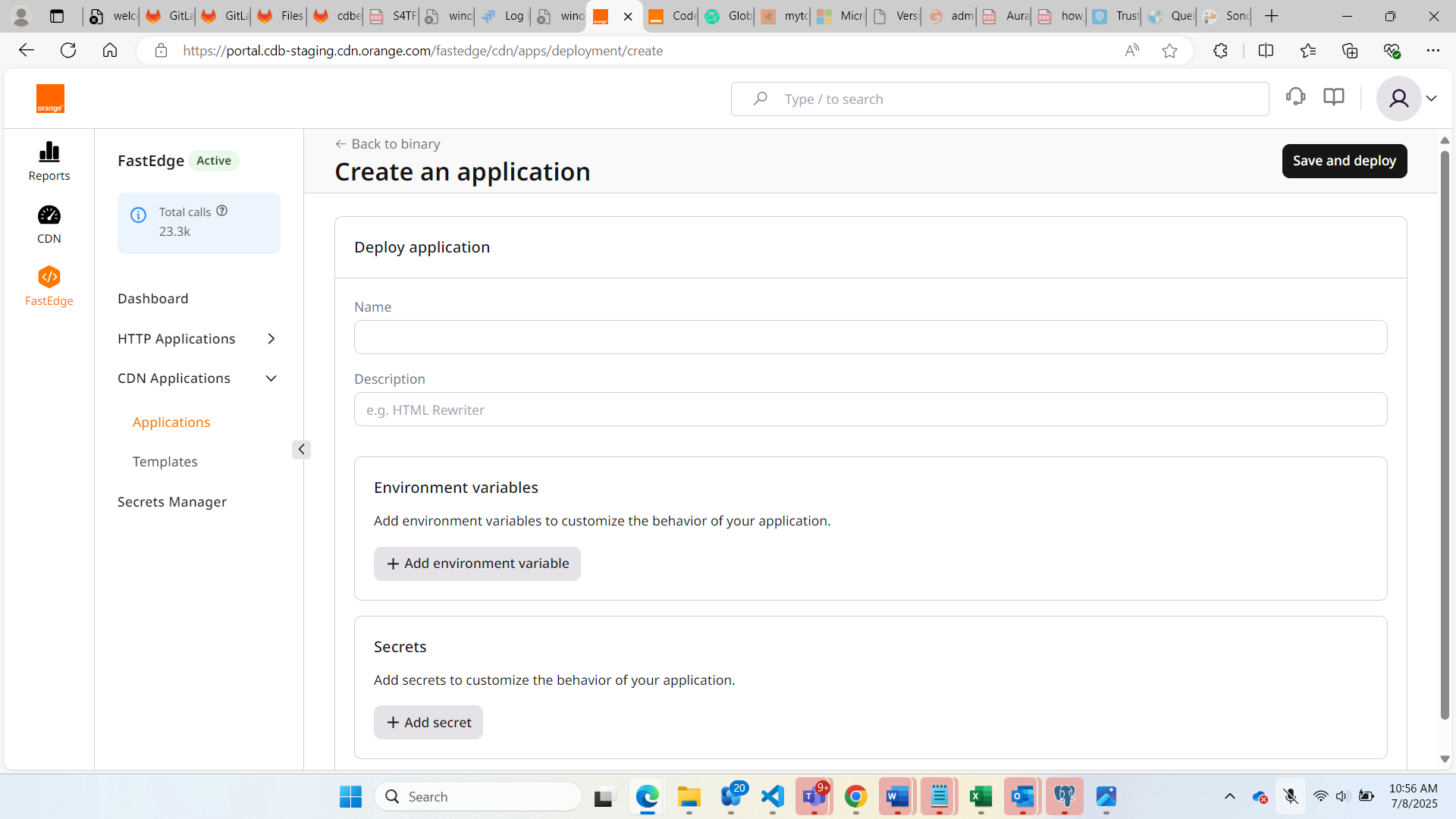
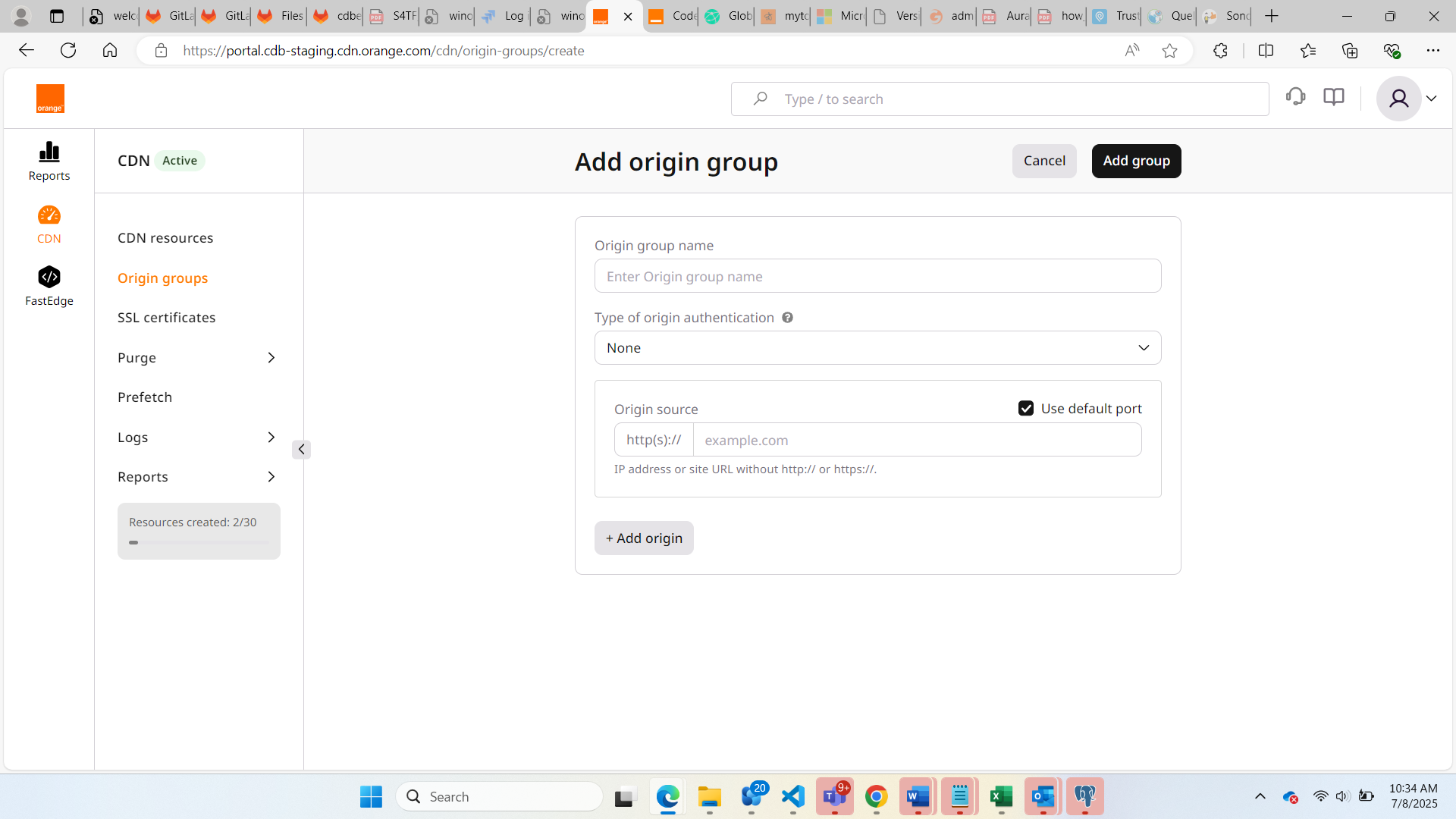
- Create an origin group (seee picture below).
- Create a CDN resource, and don't forget to select your origin group created. (seee picture below).
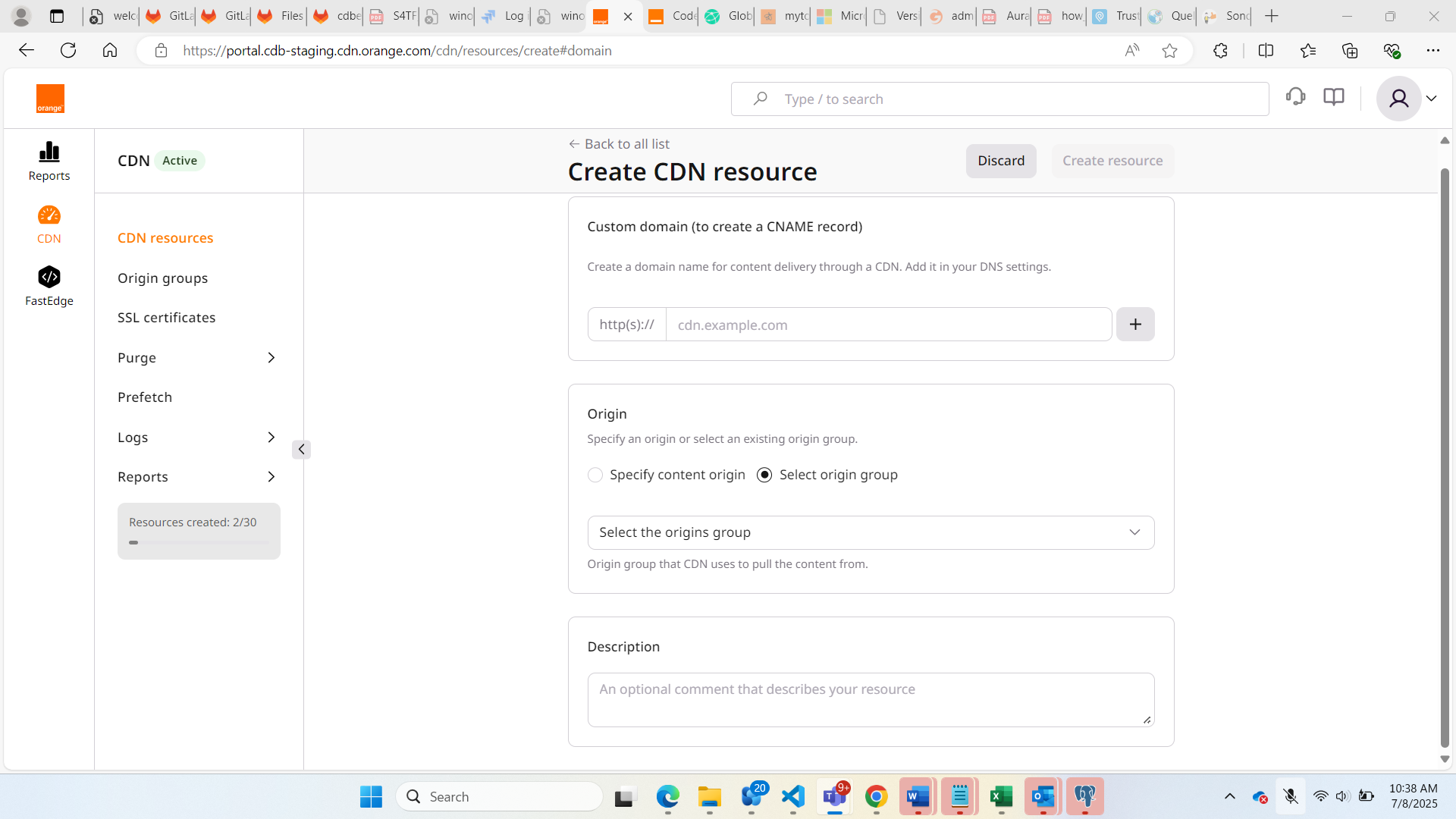
- Link your CDN resource to your FastEdge application. (seee picture below).
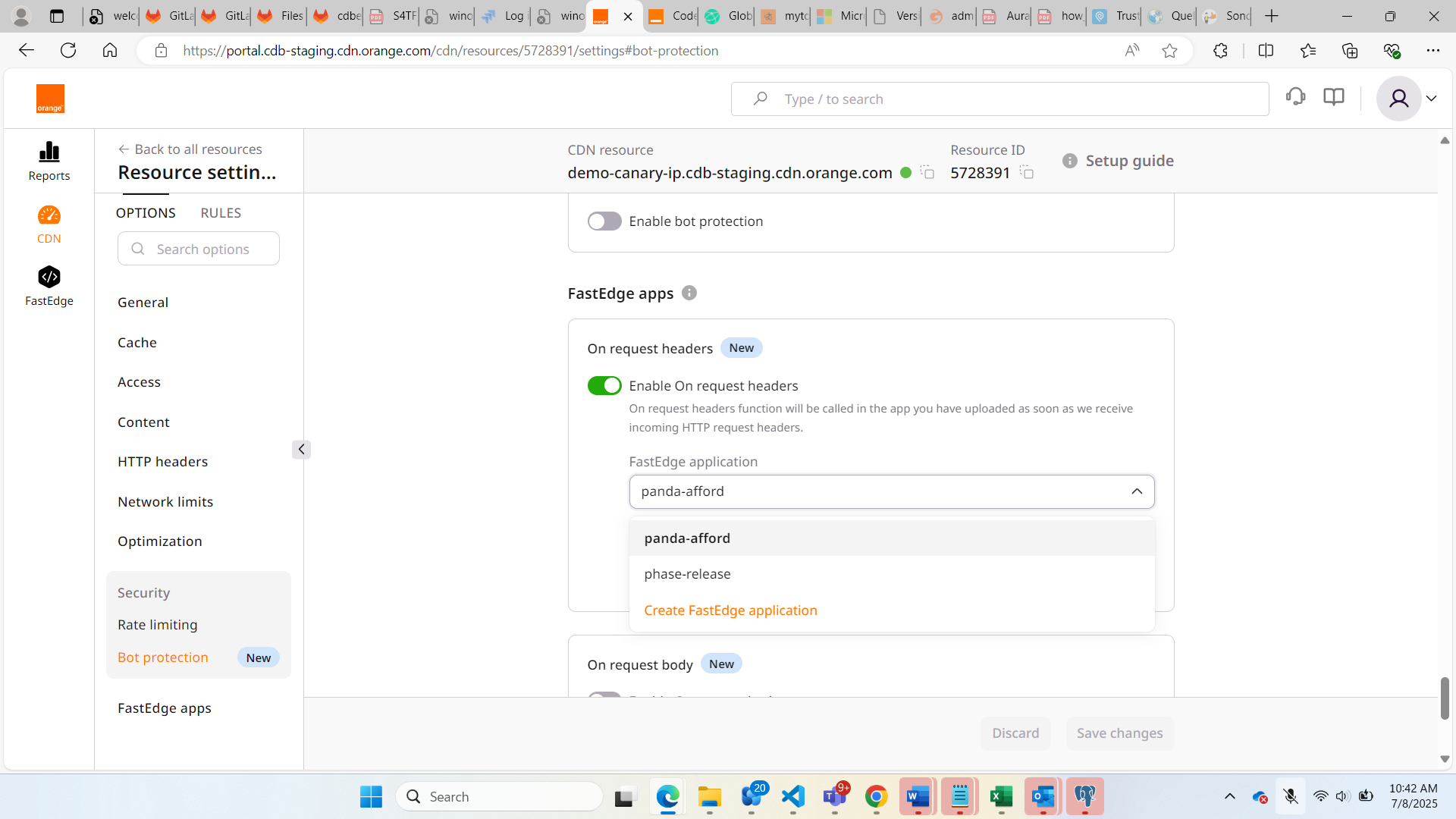
Prerequisite: CDB Edge Compute must be activated for your customer.
How to Manage your Release Manager application
-
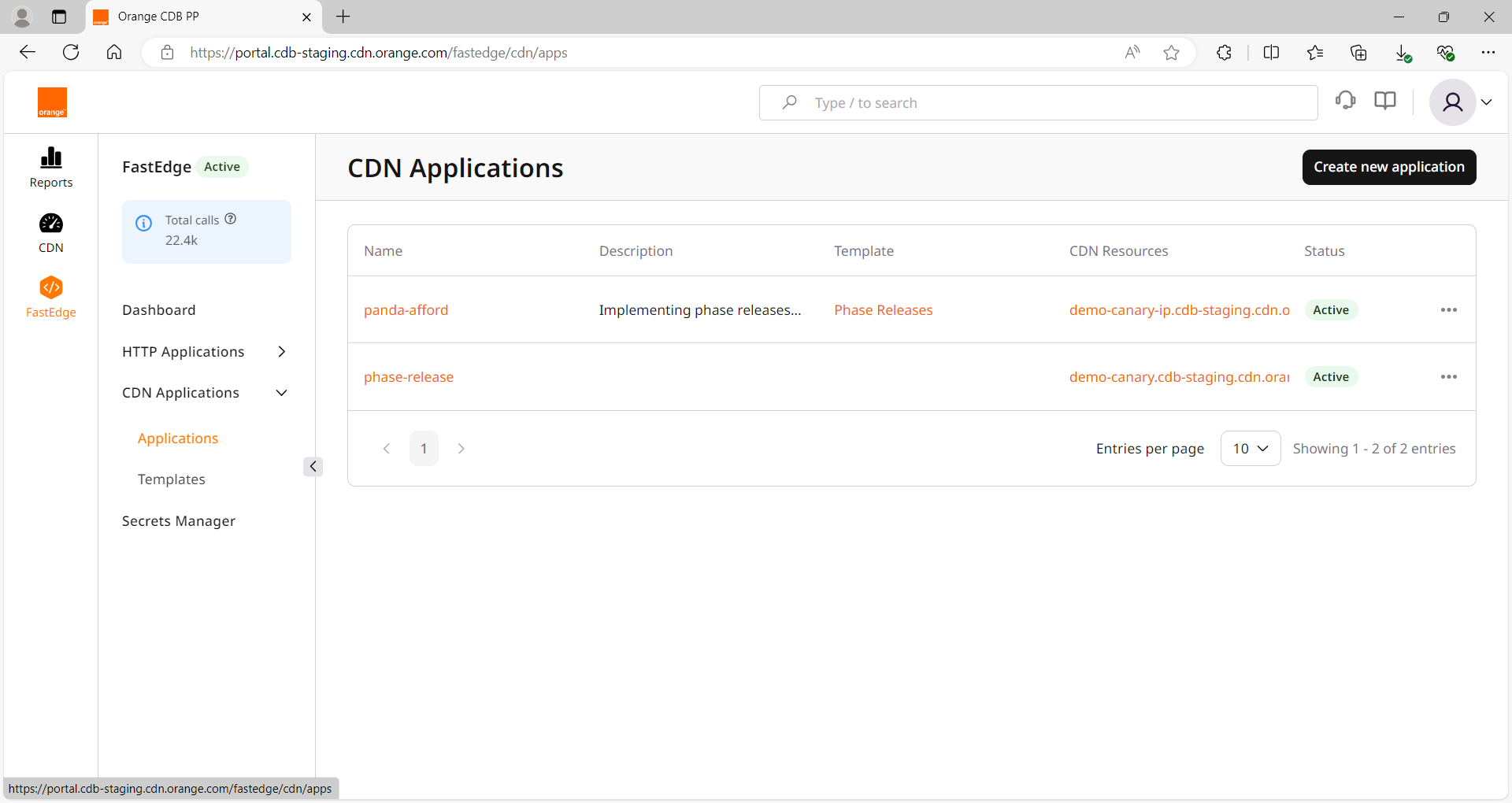
Click on the FastEdge icon on the left to switch to FastEdge management.
-
Select CDN Applications then Applications.
-
Click Create new application on the top right.
-
Select Your release manager Application from the list of available applications.
-
Enter your application settings and go to Environment variables tab, to manage your environment variables.
-
Click on Save changes .