Extend CDN functionality with CDB EdgeCompute
Integrate your CDN resource with CDB EdgeCompute if you need to introduce additional functionality to Orange's CDN and customize its behavior for various use cases.
Such a setup allows you to extend the CDN beyond standard features and implement advanced logic for:
- Authentication checks. Deploy CDB EdgeCompute apps based on the JWT authentication template or develop a custom authentication functionality.
- Custom headers modification. Adjust header information on requests for personalized and more secure content delivery.
- Custom access rules. Use advanced geo-blocking and time-based blocking to control user access to your content and mitigate potential threats.
How it works
Unlike traditional HTTP applications, a CDN application in CDB EdgeCompute must be developed according to the Proxy-Wasm (WebAssembly for Proxies). This ensures compatibility and standardization across different CDN environments.
The application is called at the early stage of CDN processing, allowing for immediate intervention and customization. We're actively working on new interception points across the CDN workflow to cover many use cases.
The CDB EdgeCompute application can be invoked at the following stages of the CDN processing workflow:
- On request headers: when we receive an HTTP request from a client.
- On request body: when we receive an HTTP request body from a client.
- On response headers: before we start sending HTTP response headers to a client
- On response: before we start sending an HTTP response to a client.
You can only configure one application per stage.
Set up CDB EdgeCompute integration with the CDN
To get started, you need a CDN resource configured for your origin. If you don't have Orange's CDN set up, follow the instructions in this guide: Create a CDN resource.
Step 1. Create a CDB EdgeCompute application
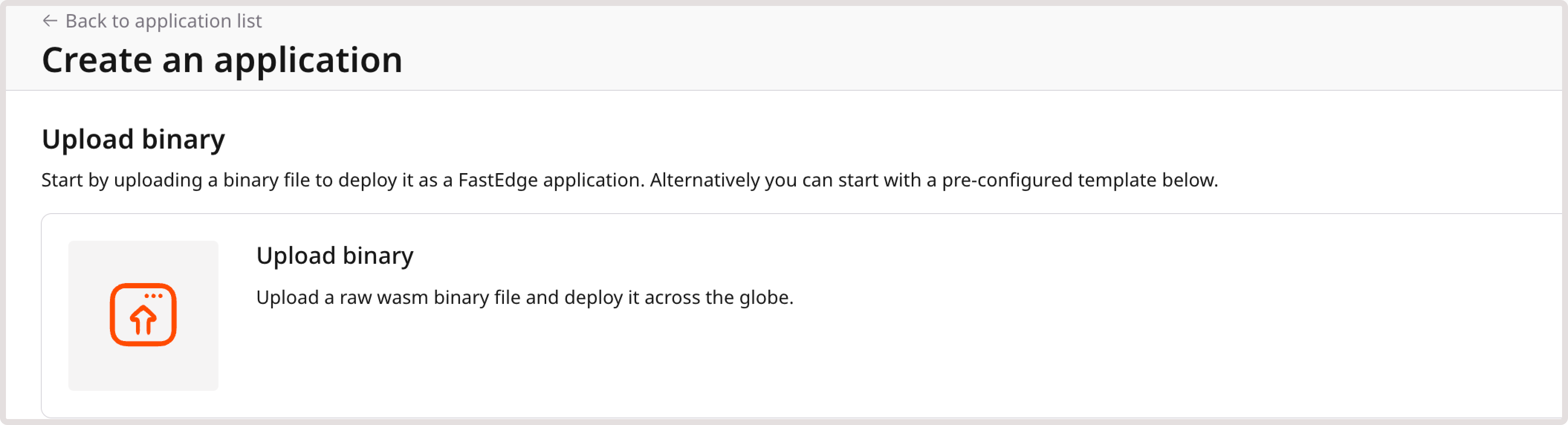
You can deploy an application from a predefined template or from a custom Wasm file. If you choose the latter option, ensure your Wasm binary file complies with the WebAssembly standard for proxies.
Currently, you can use a predefined template to enable authentication in your application. The template is configured to verify the JSON Web Token (JWT) in the request header.
To deploy an application from the template:
- In the CDB Technical Web Portal, navigate to CDB EdgeCompute.
- Open the CDN Applications page and click Create new application.
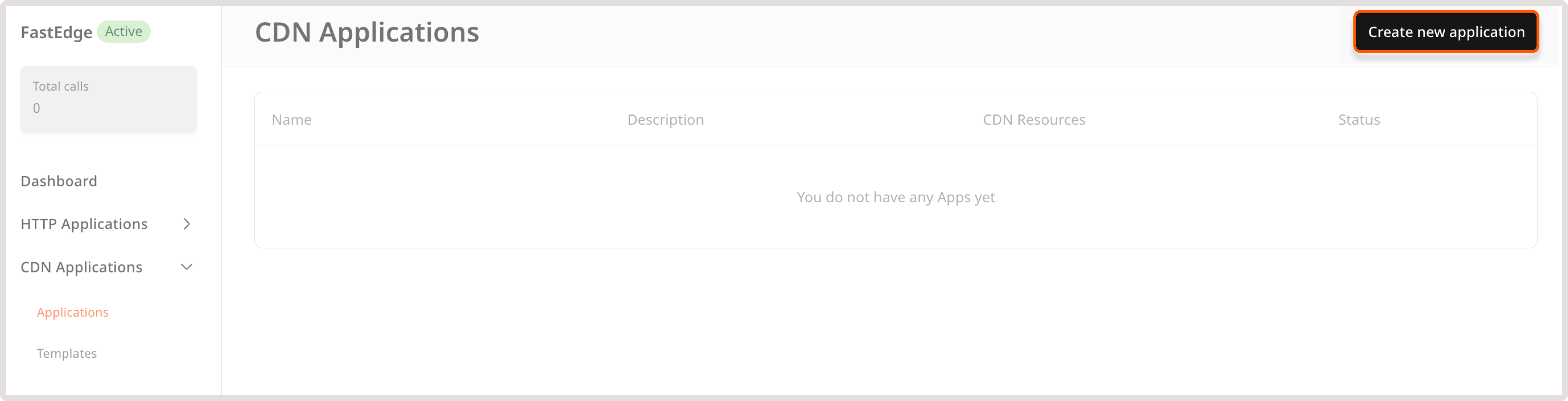
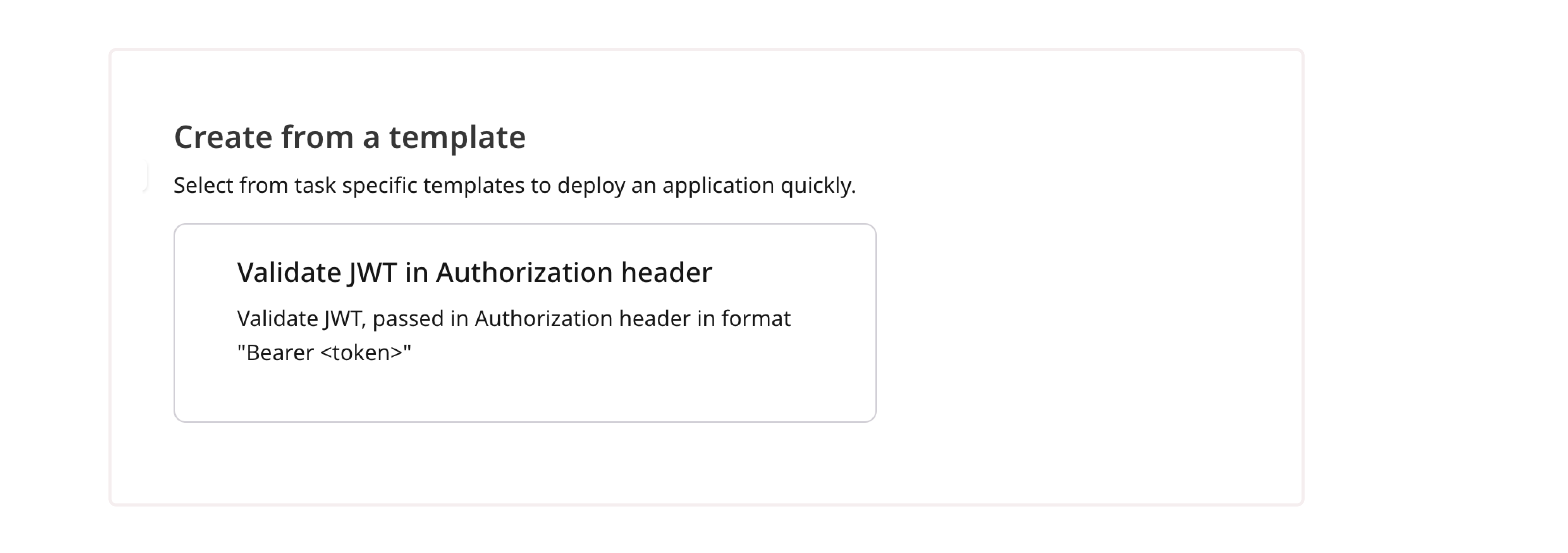
- In the Create from a template section, choose Validate JWT in Authorization header.
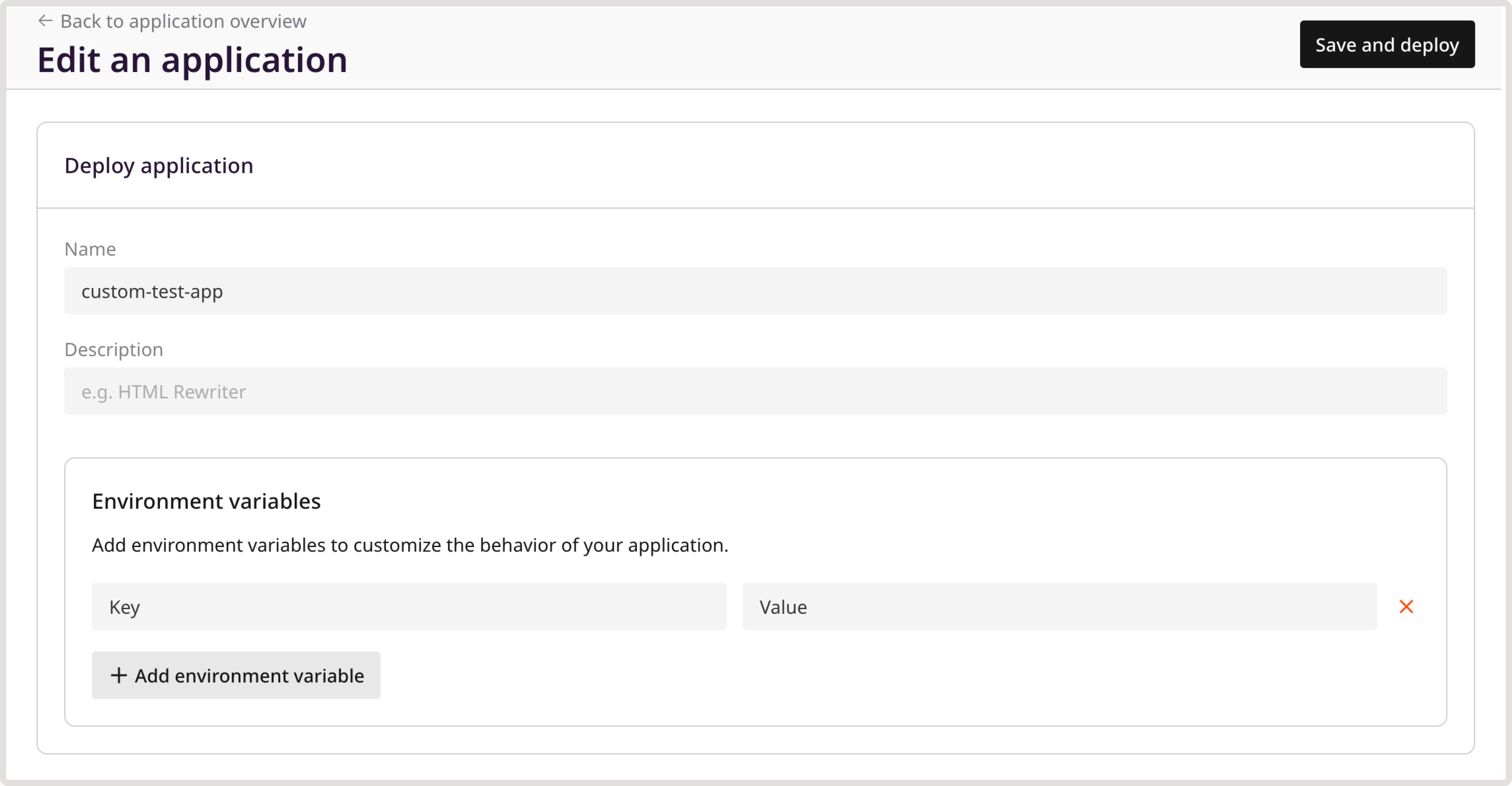
- Enter a name for your application and, optionally, update its description.
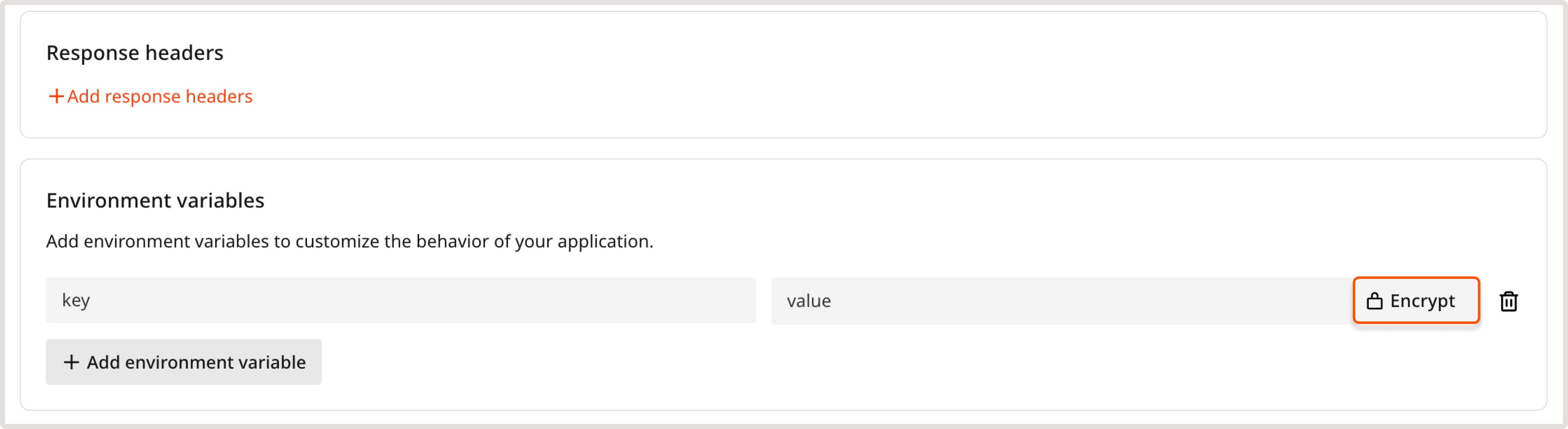
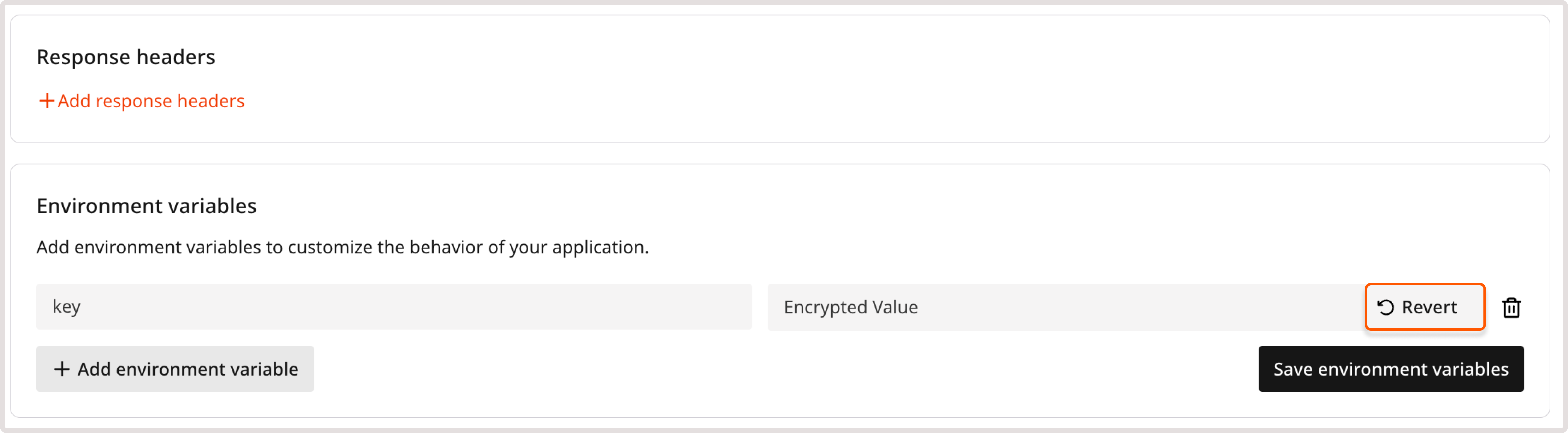
- Add required environment variables, such as a token signing key that will be used for authentication checks.
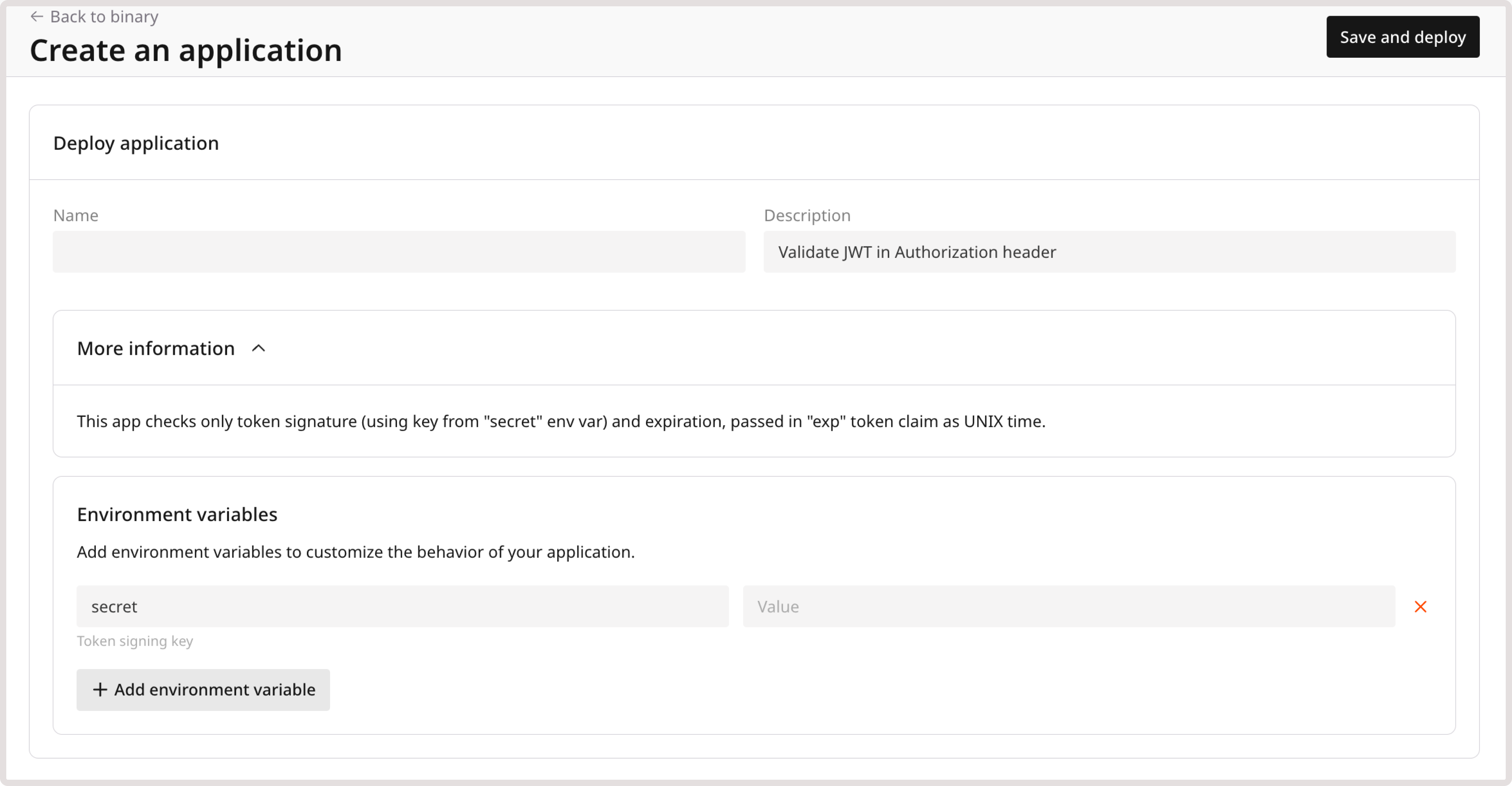
- Click Save and deploy.
Your application has been successfully deployed and can now be accessed through the CDN.
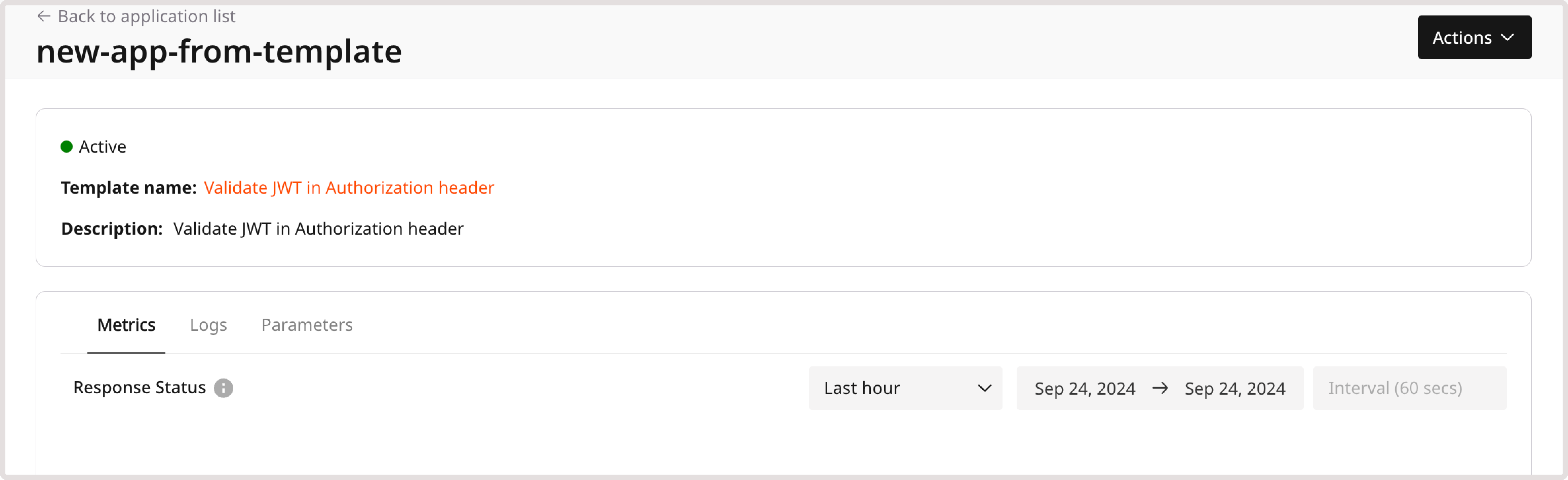
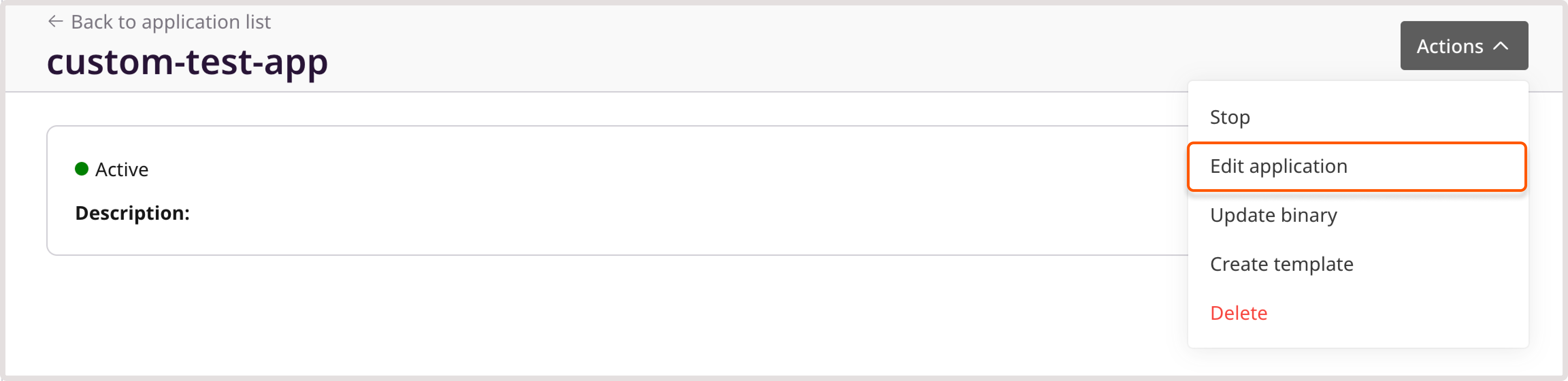
If you need to adjust the configuration, click Actions > Edit application.

Step 2. Enable CDB EdgeCompute functions for your CDN resource
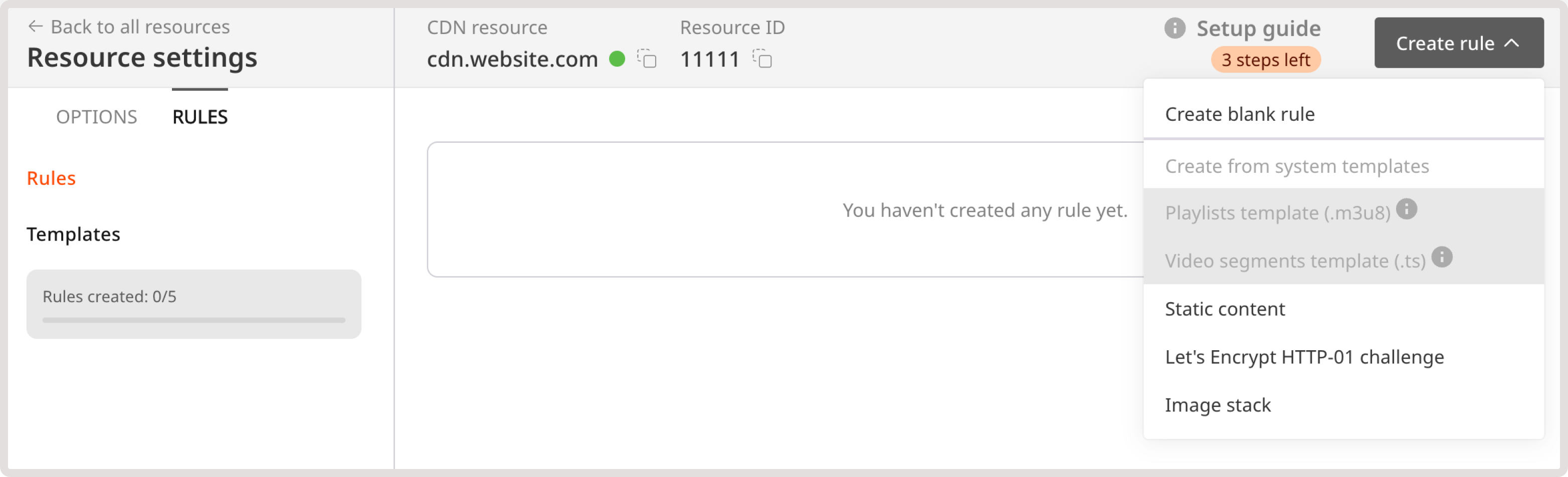
You can enable the configured Wasm functionality for the whole CDN resource or just some URLs.
- In the CDB Technical Web Portal, navigate to CDN.
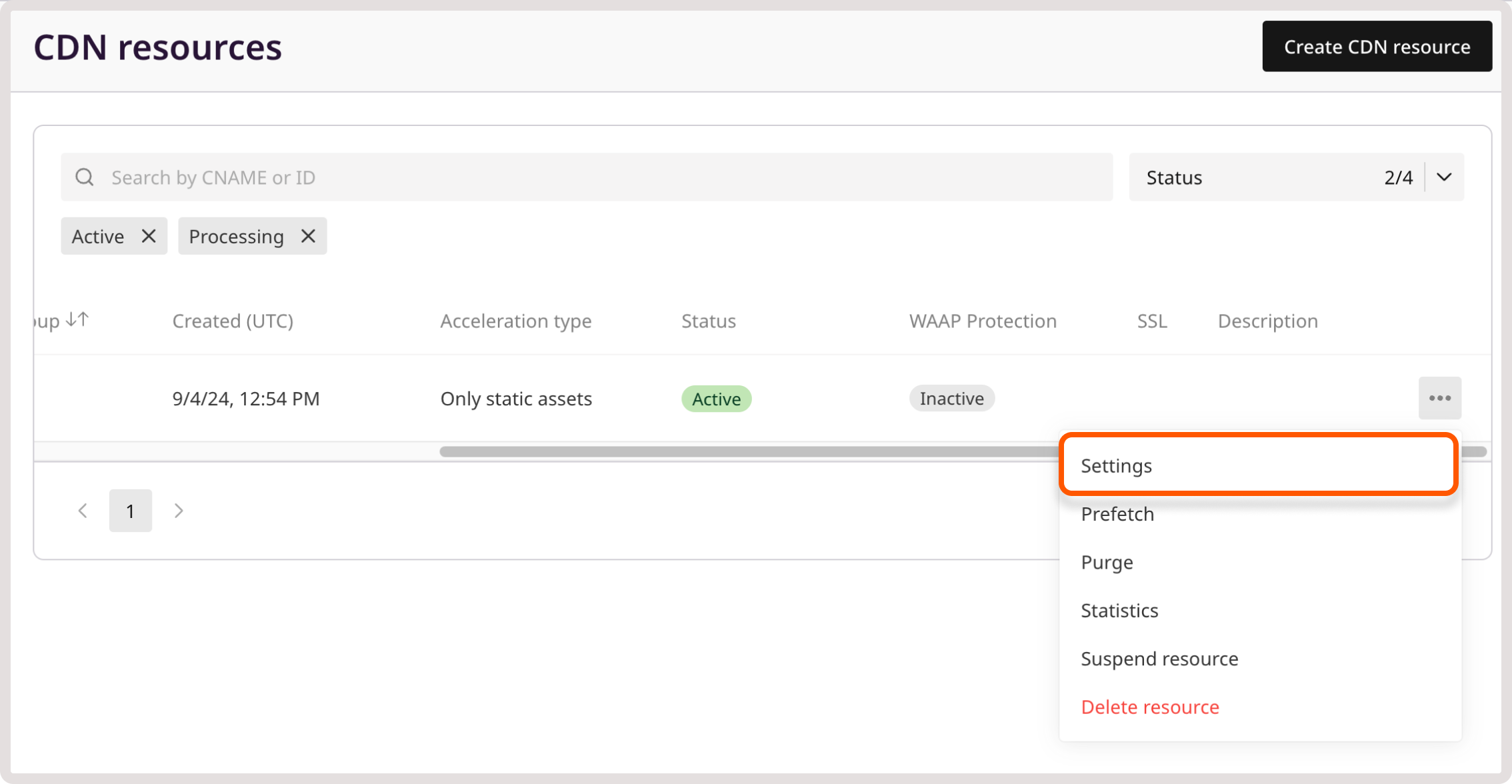
- Find the resource you want to integrate with CDB EdgeCompute and open the resource settings.
-
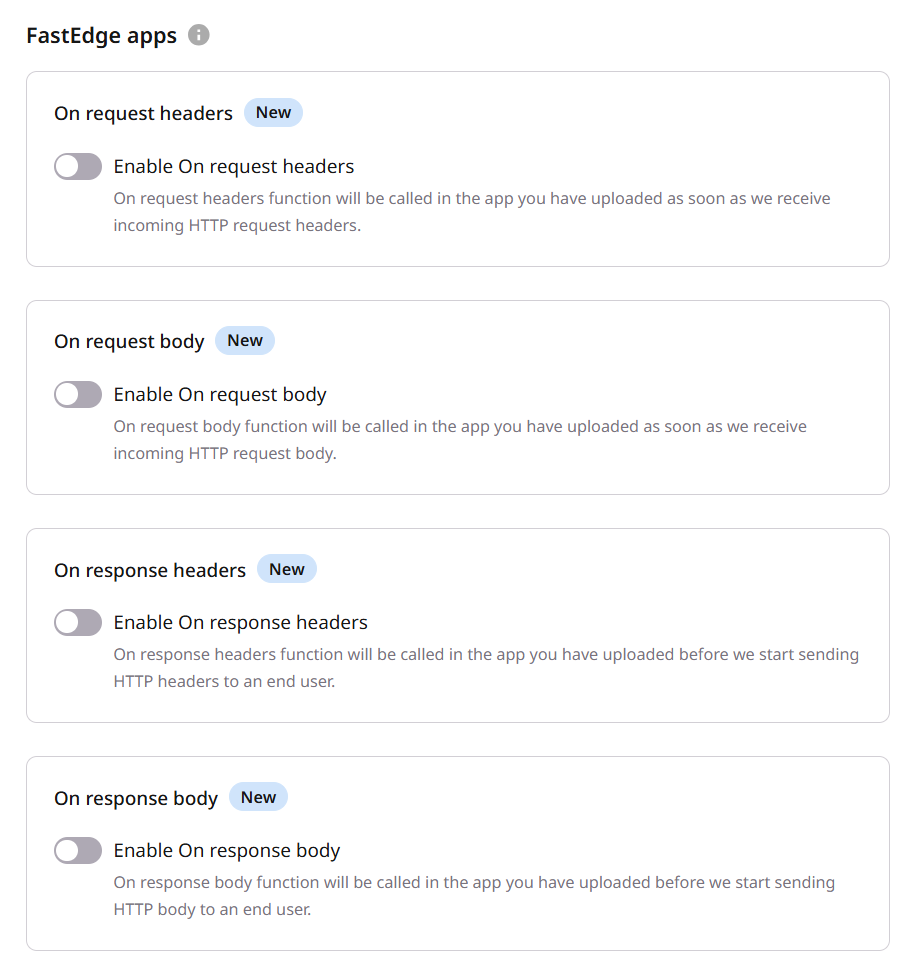
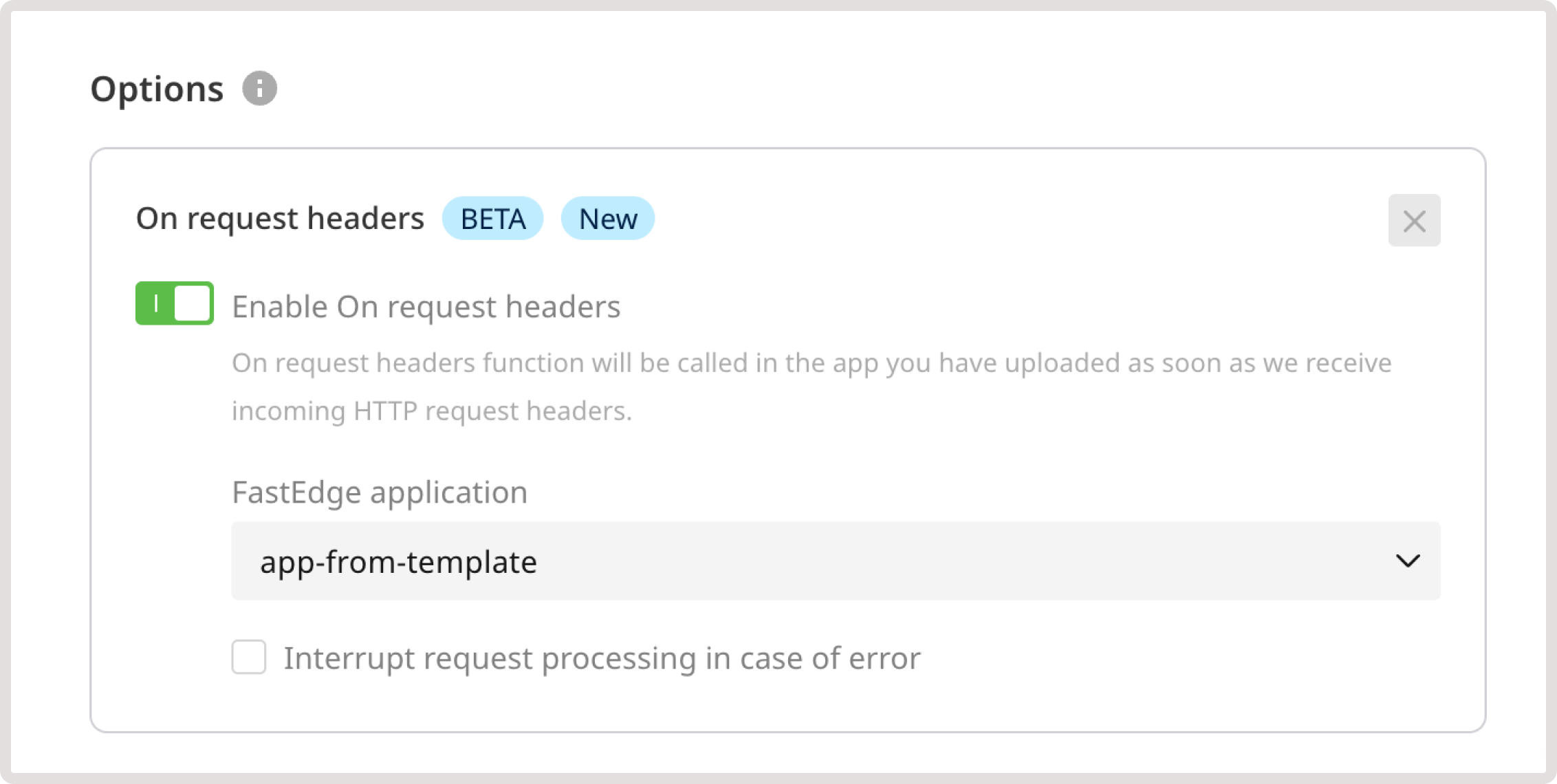
Scroll the page down to the CDB EdgeCompute apps section and enable the toggle for the event you need.
Currently, we support four events: On request headers, on request body, on response headers, and on response body.
- Choose your application from the dropdown.
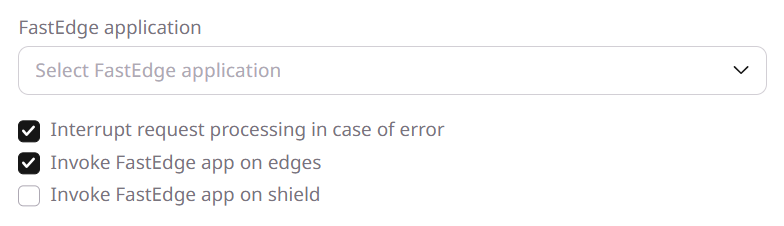
- (Optional) Select the Interrupt request processing in case of error checkbox.
Info
The Interrupt request processing in case of error checkbox is enabled by default. This ensures that any errors on the CDB EdgeCompute side will be returned to the browser with the relevant response code. If you disable the checkbox, CDN will ignore the error and pass requests directly to the origin. For security considerations, we recommend keeping this checkbox active.
- Click Save.
Disconnect CDB EdgeCompute from CDN
If you no longer need to use the functionality configured in your CDB EdgeCompute application, you can disable the CDB EdgeCompute functions for your CDN resource.
The steps will slightly differ depending on whether you remove CDB EdgeCompute from the whole CDN resource or just specific URLs.
- In the CDB Technical Web Portal, navigate to CDN.
- Find the resource integrated with CDB EdgeCompute and open the resource settings.
- If you enabled CDB EdgeCompute for a whole CDN resource, disable the toggles you no longer need.
- If you enabled Fast Edge just for particular paths, open the Rules page and disable the toggle for the required rule.
- Click Save changes.
You've successfully disconnected your CDN resource from CDB EdgeCompute.
Delete CDN application in CDB EdgeCompute
Info
You can't delete an enabled Fastedge application connected to a CDN resource. To remove the application, disconnect it from the CDN resource first.
To delete an application:
- In the CDB Technical Web Portal, navigate to CDB EdgeCompute.
- Open the CDN Applications page and click the three-dot icon next to the application that you want to remove.
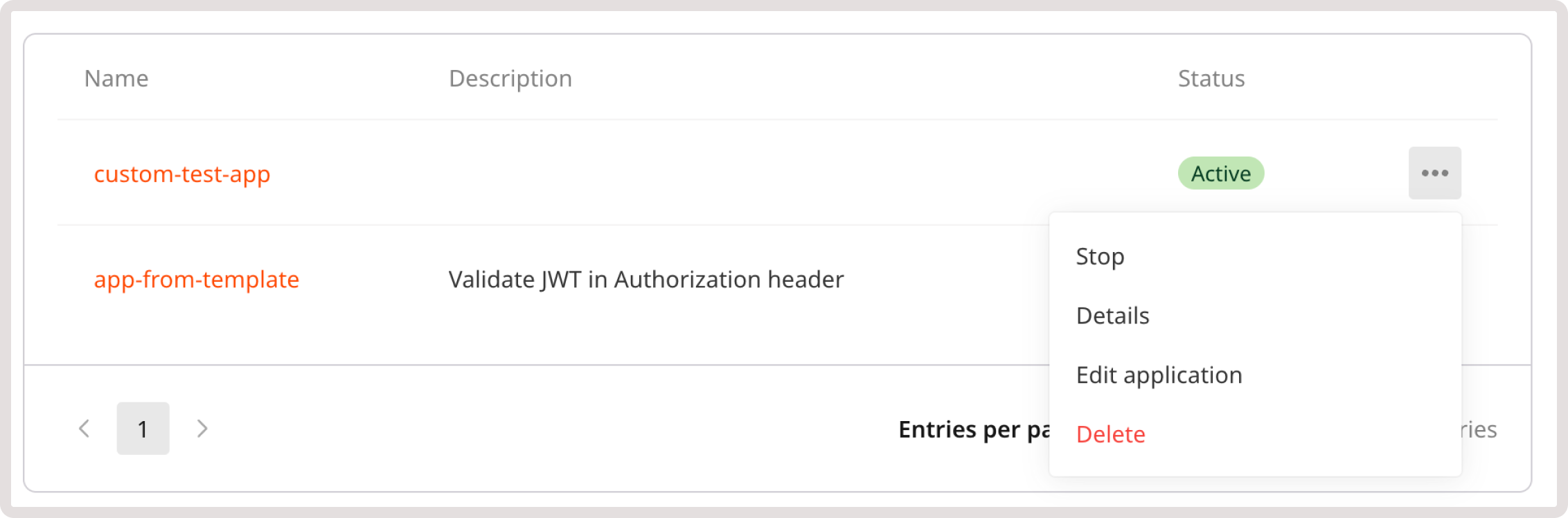
- Click Delete.
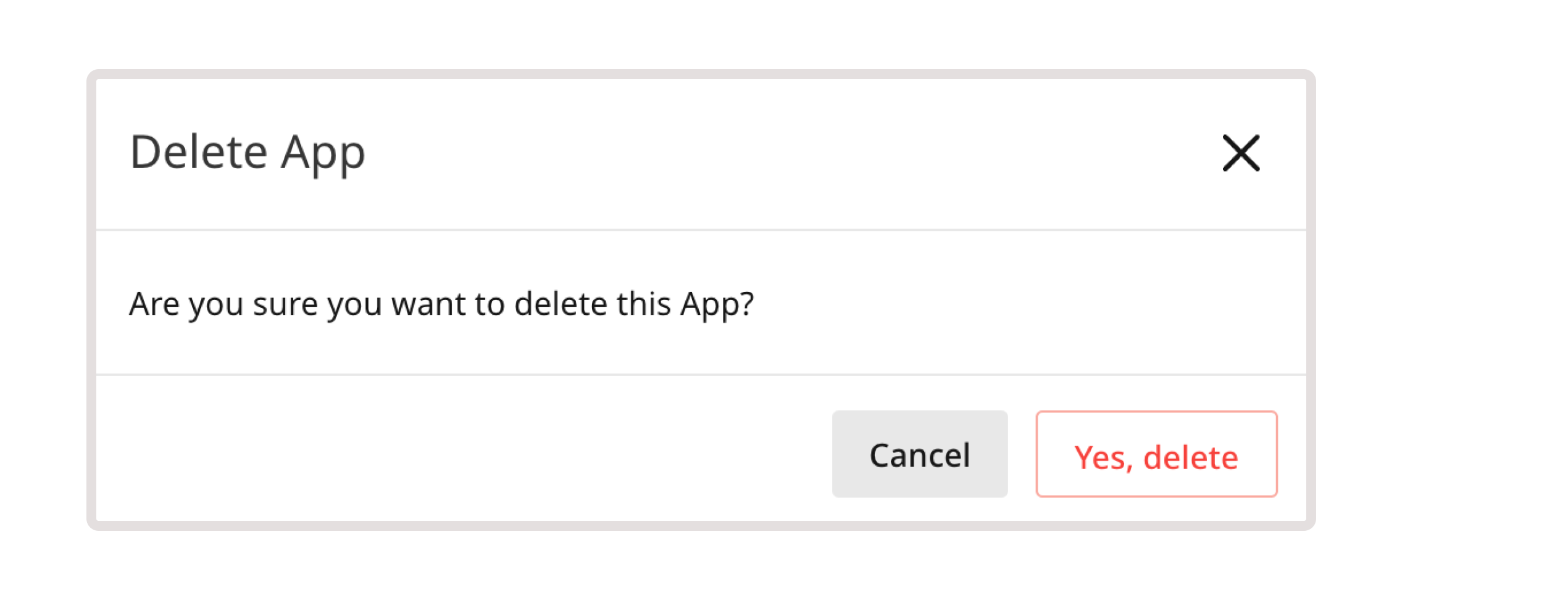
- Confirm your action by clicking Yes, delete.
You've successfully removed your CDN application from CDB EdgeCompute.