Edgecompute CDN applications run inside the CDN request pipeline and modify requests and responses before they reach the origin or client.
A CDN resource configured for the origin is required. To create one, follow the CDN resource guide.
How it works
The CDN runtime invokes a CDN application at five stages of the request lifecycle:
On request headers (before cache): when the CDN receives request headers, before the cache is checked.
On request headers (after cache): when the CDN receives request headers, after the cache is checked.
On request body: when the CDN receives the request body.
On response headers: before the CDN sends response headers to the client.
On response body: before the CDN sends the response body to the client.
ℹ️
CDN applications are built on the Proxy-Wasm specification — an open standard for WebAssembly-based proxy extensions.
⚠️
Only one Edgecompute application can be attached to each processing stage.
Step 1. Create a Edgecompute application
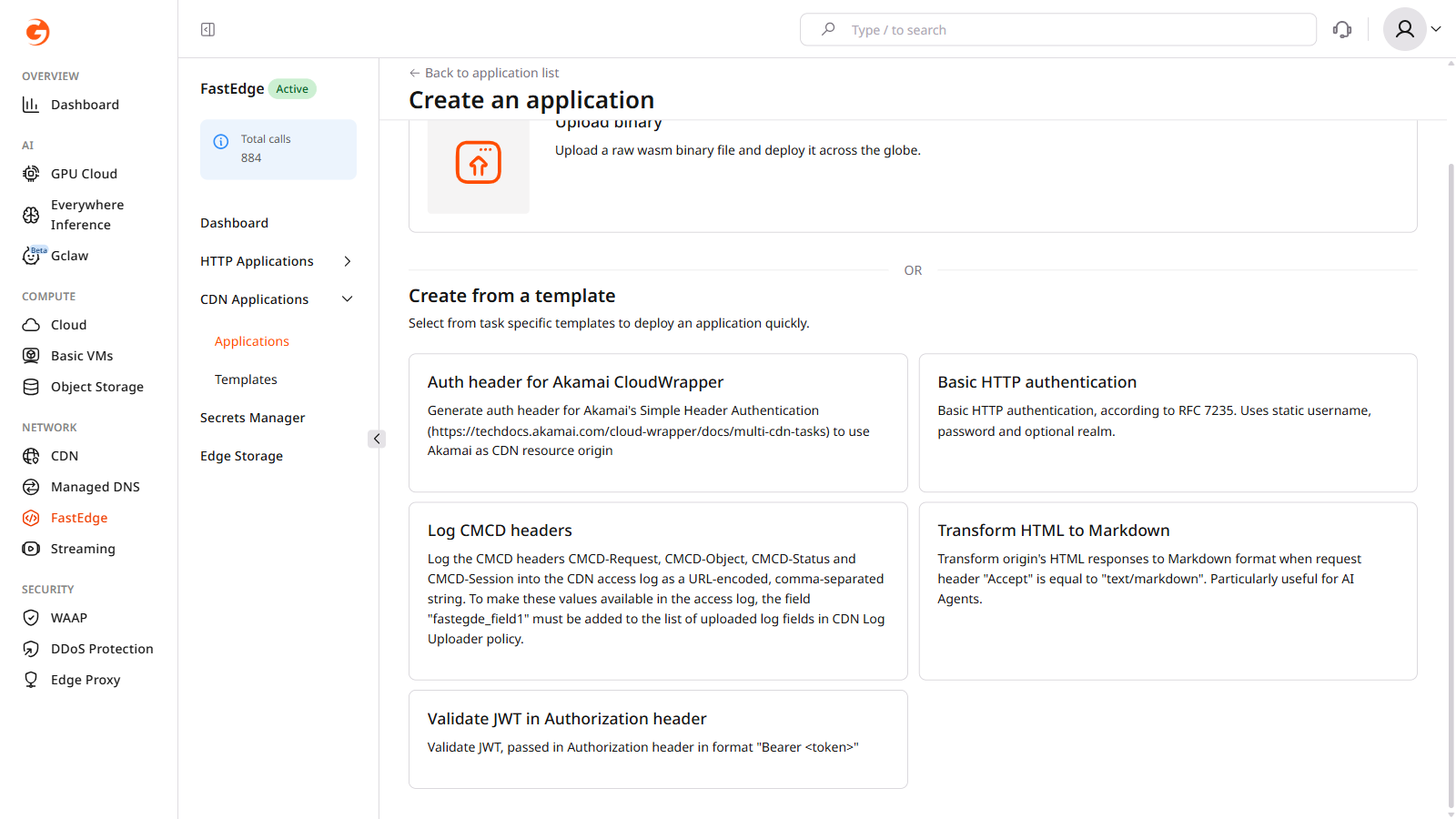
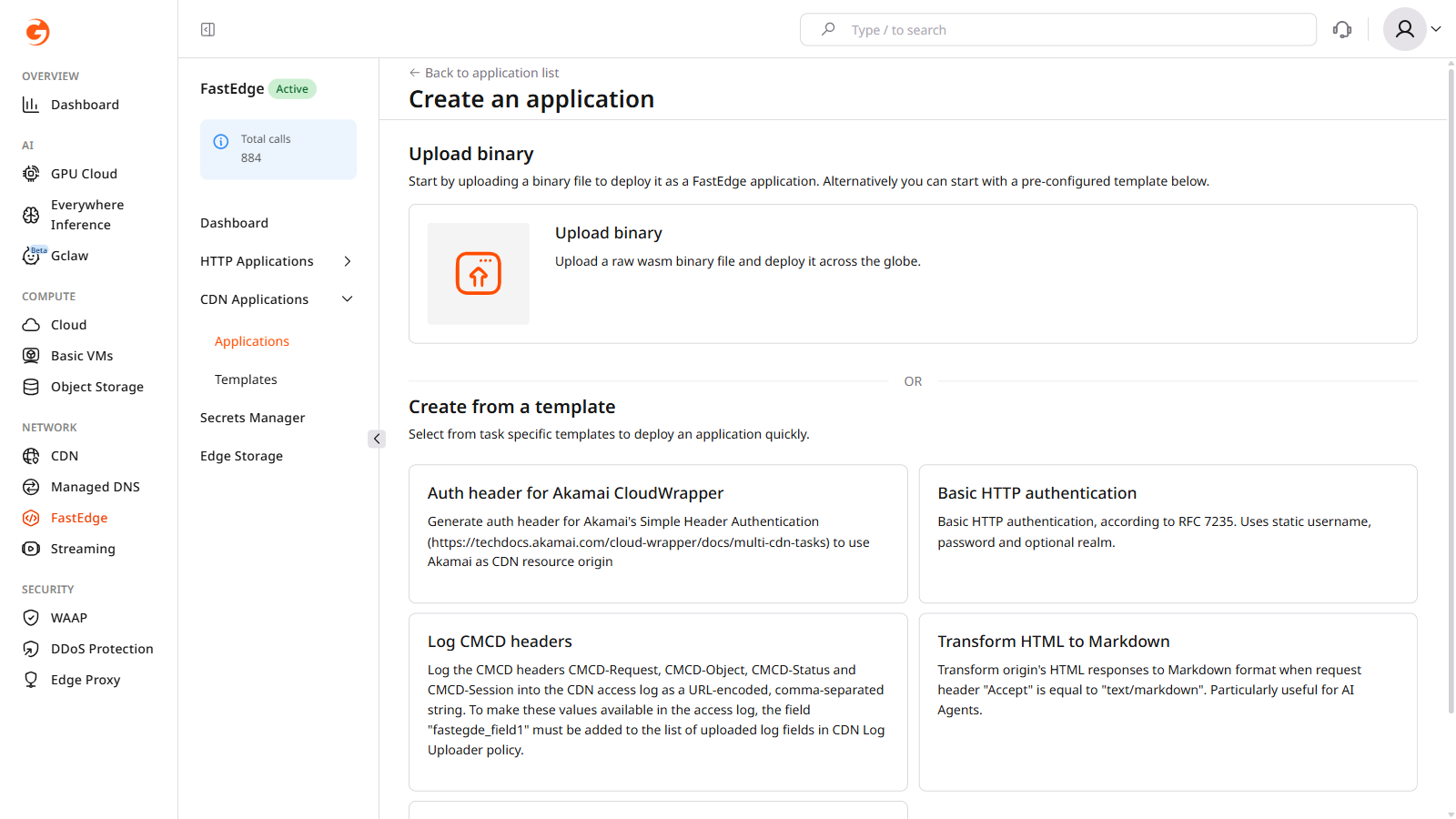
Deploy an application from a predefined template or upload a custom binary. Custom binaries must conform to the Proxy-Wasm specification.
A predefined template is available for JWT authentication. It verifies the JSON Web Token in the request Authorization header before the request reaches the origin.
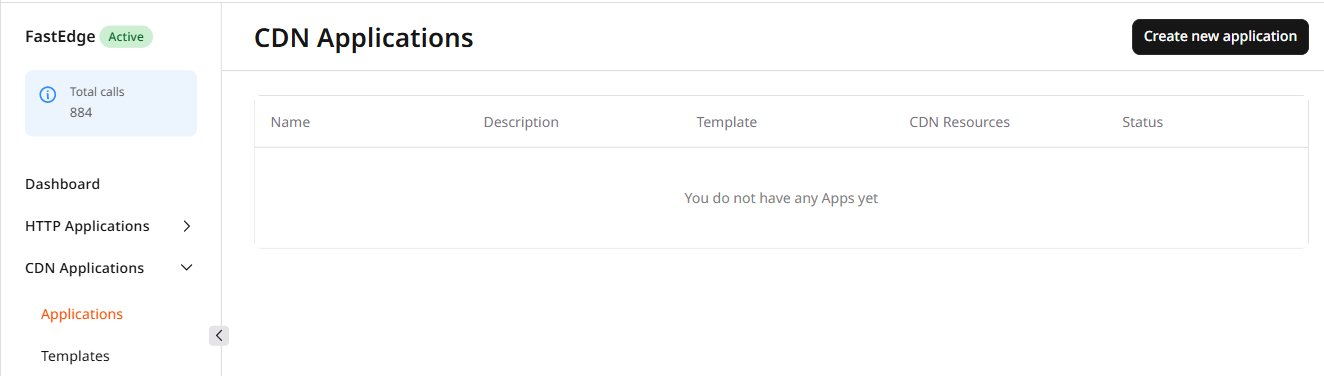
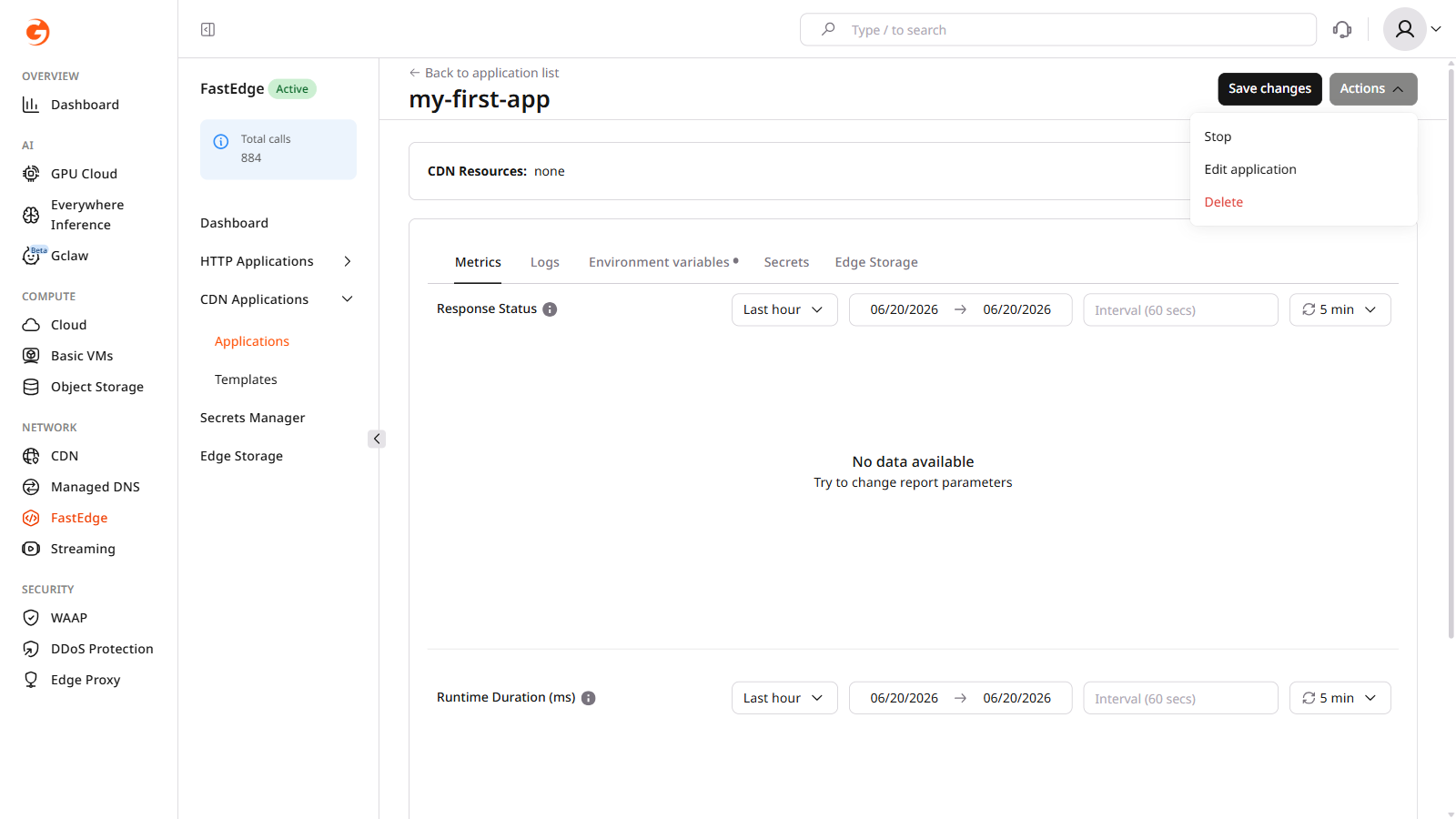
Open the CDN Applications page and click Create new application.
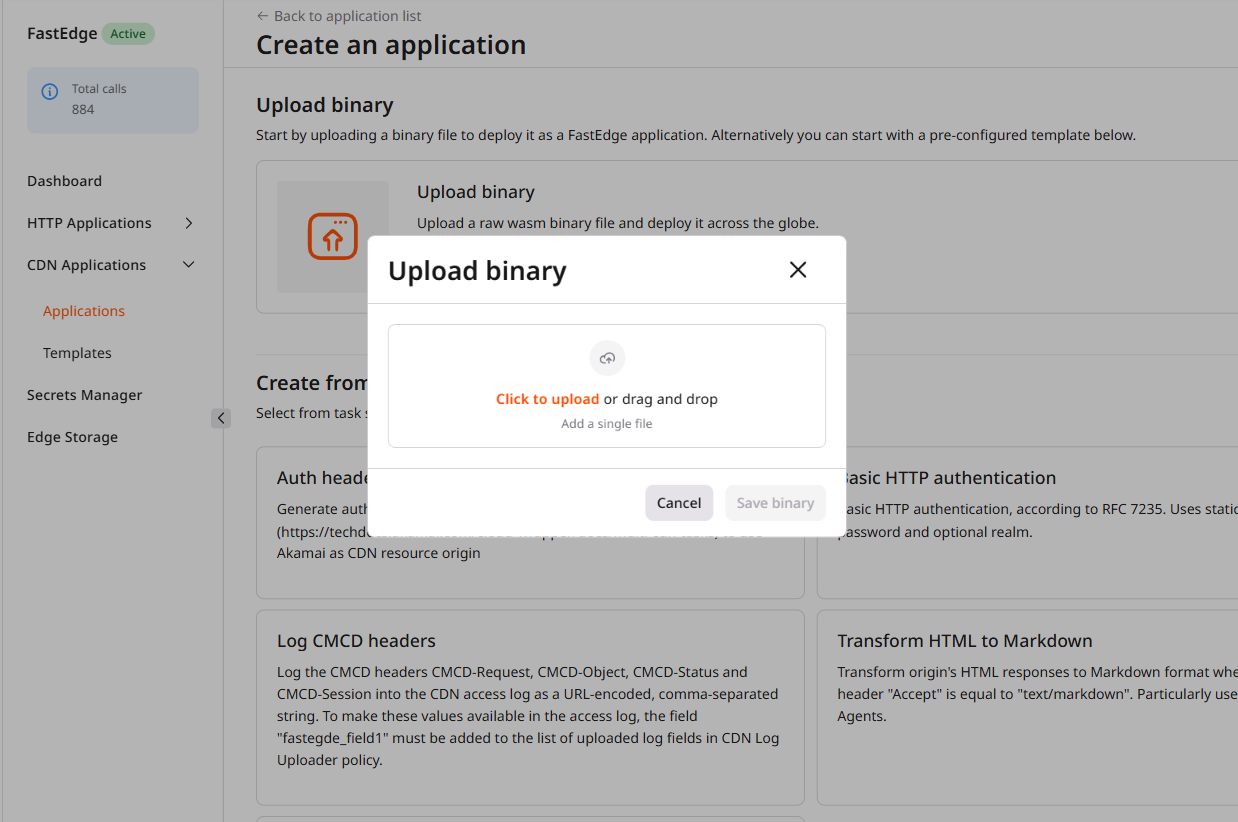
Click Upload binary.
Select the compiled .wasm file.
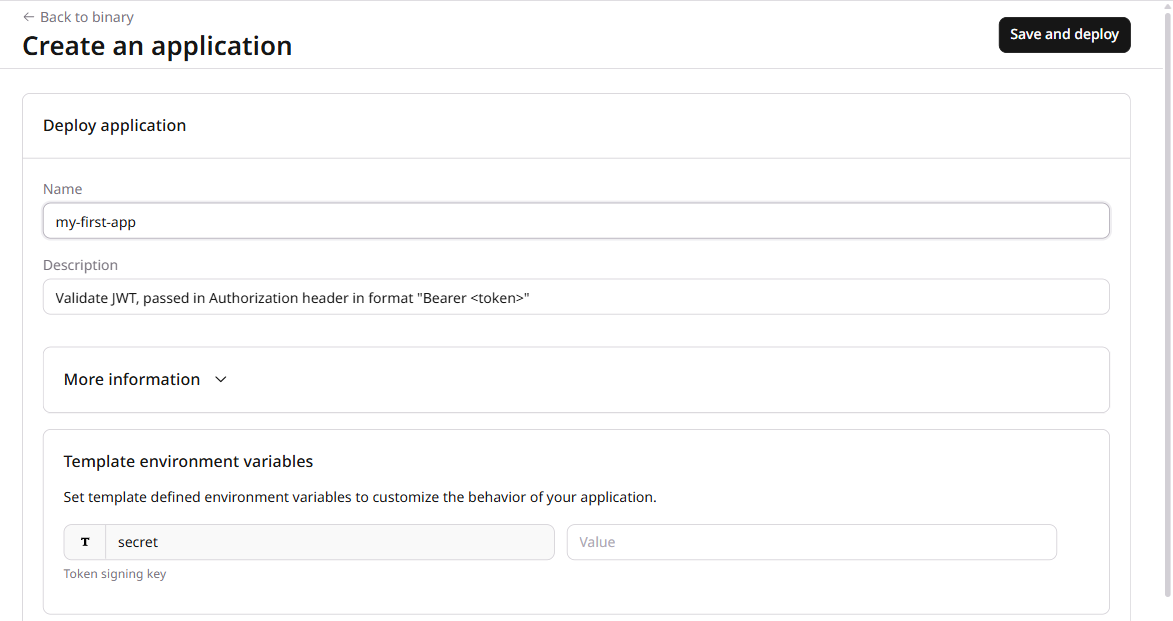
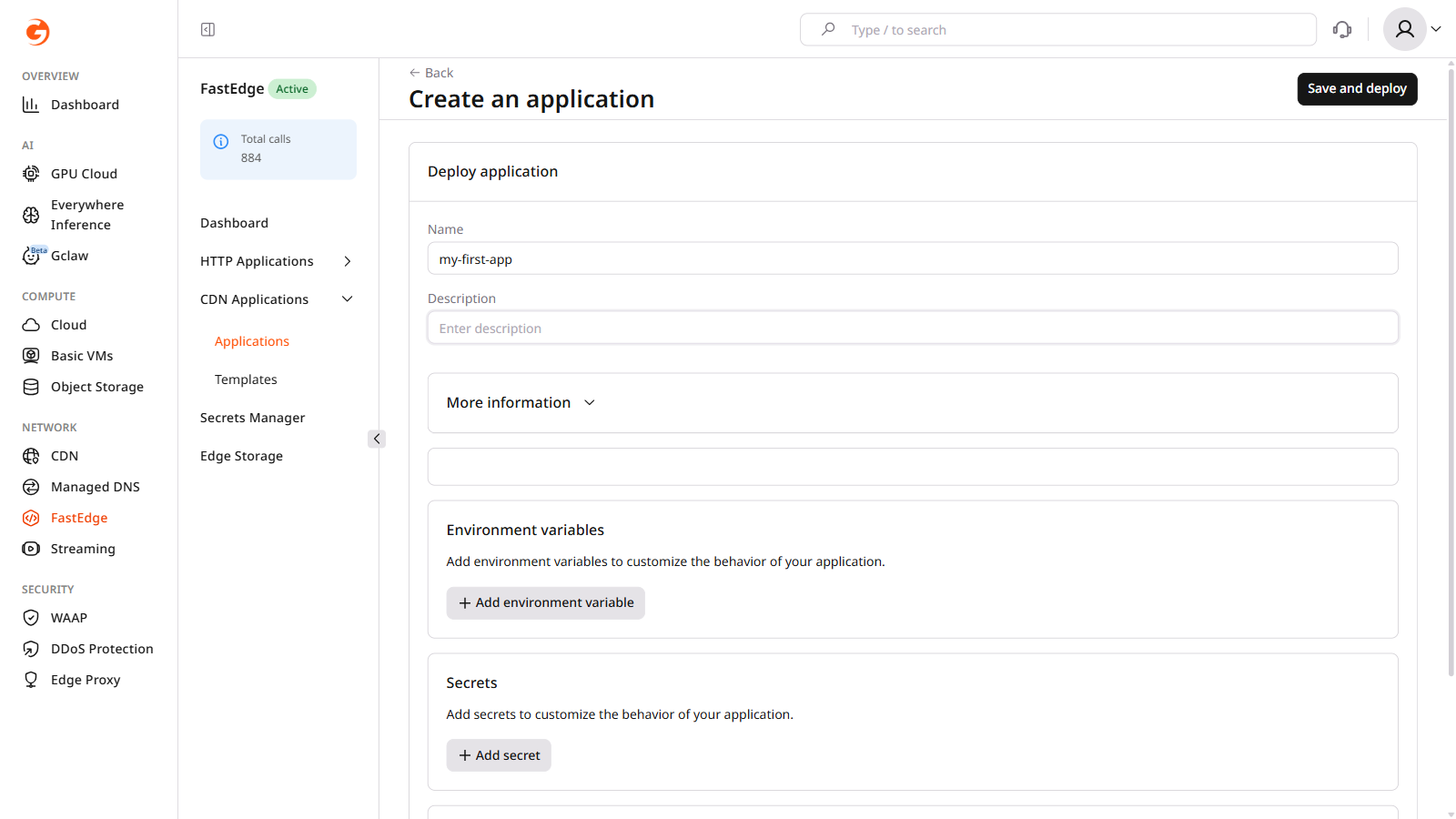
Enter a name for the application and, optionally, a description.
Add any required environment variables as key-value pairs. For sensitive values, click + Add Secret to store them in Secrets Manager instead.
Click Save and deploy.
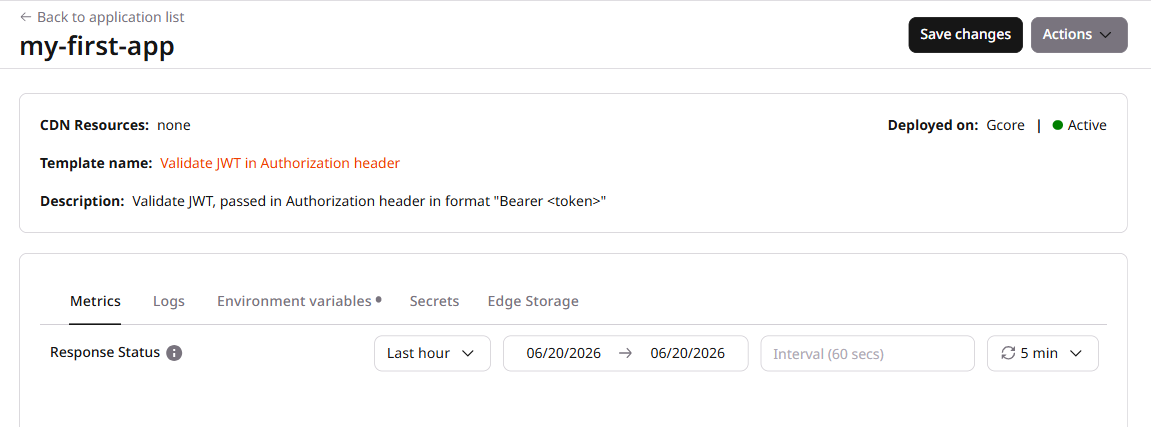
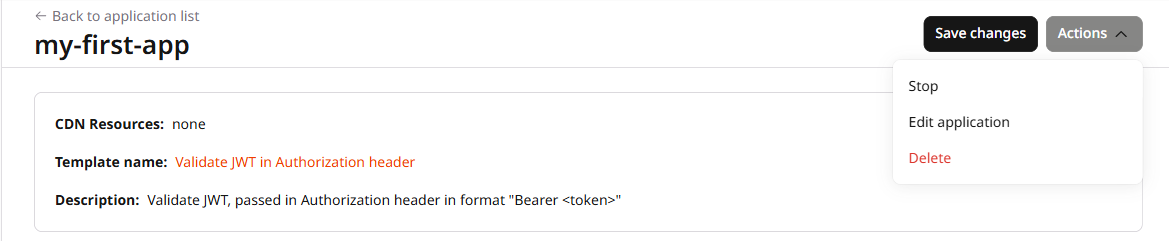
The application is deployed and ready to be linked to a CDN resource. To adjust the configuration later, click Actions > Edit application.
Step 2. Enable Edgecompute for your CDN resource
Edgecompute can be enabled for all requests on a CDN resource, or limited to specific URL paths using CDN rules.
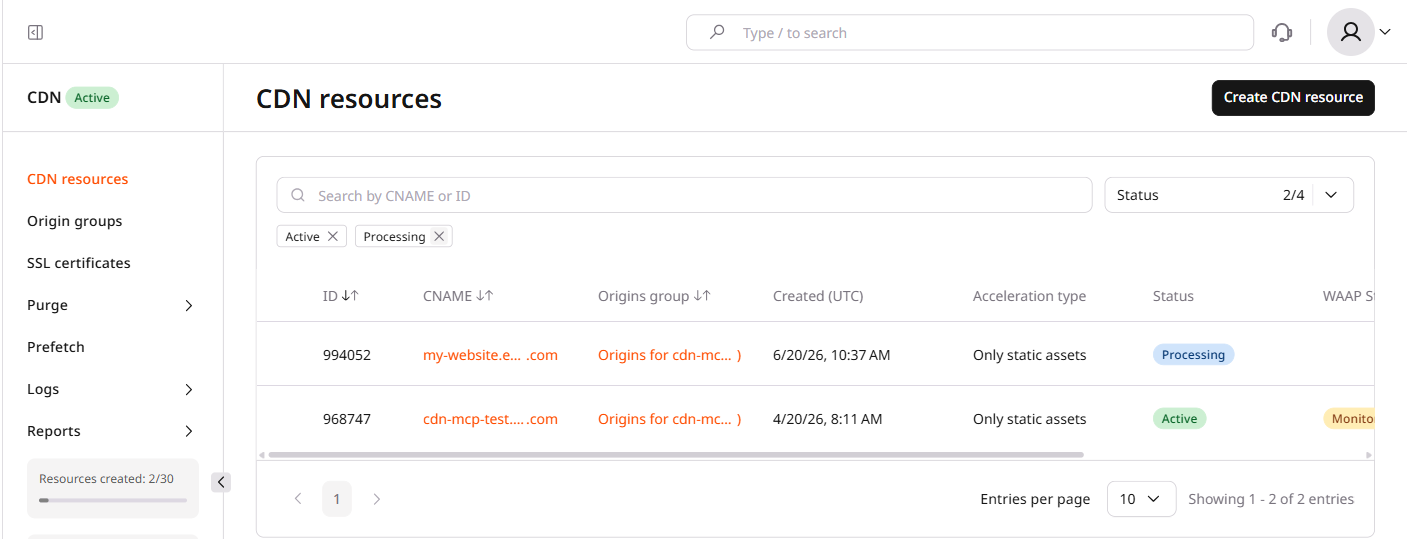
In the Customer Portal, navigate to CDN.
Find the resource and open its settings.
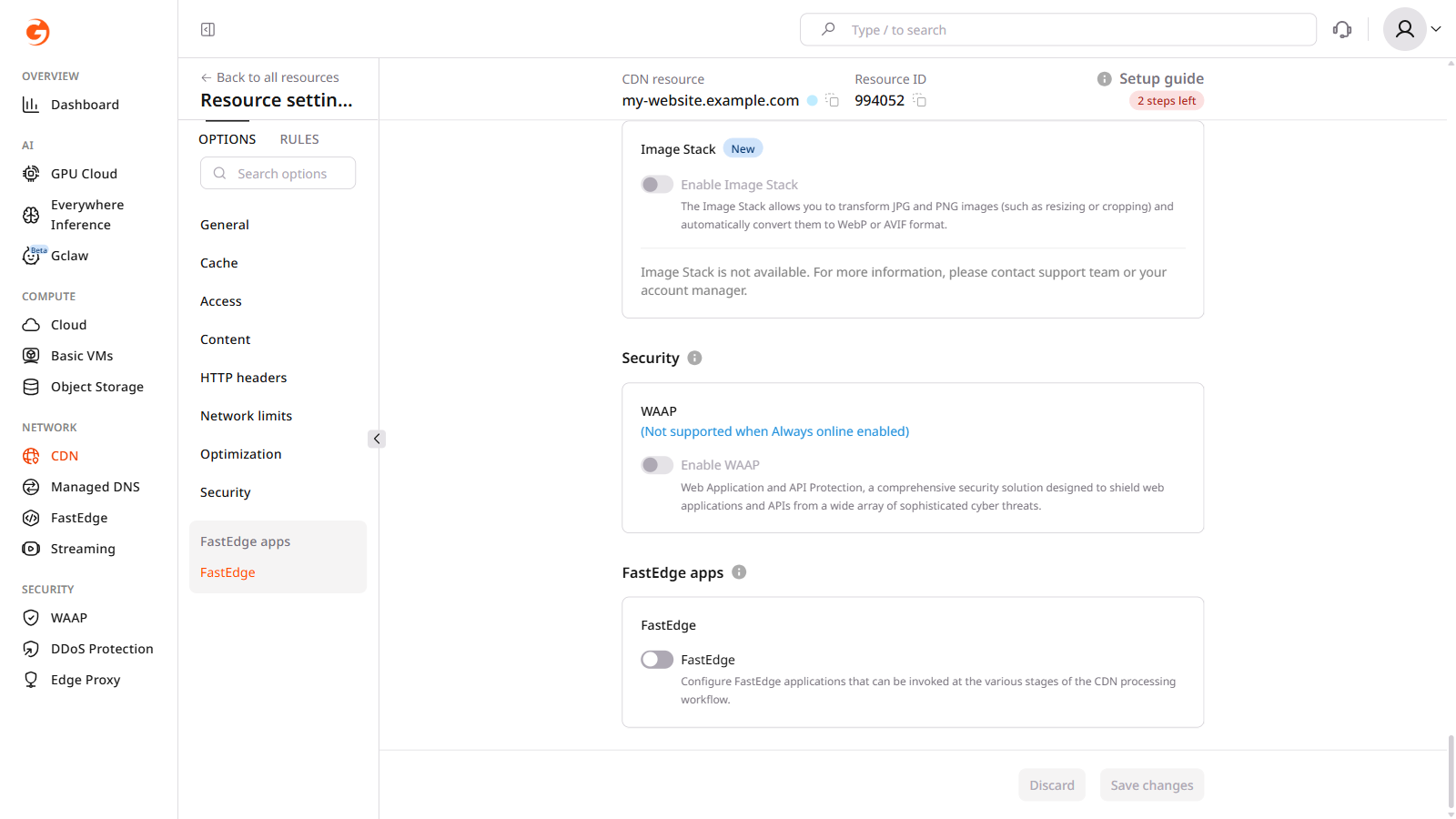
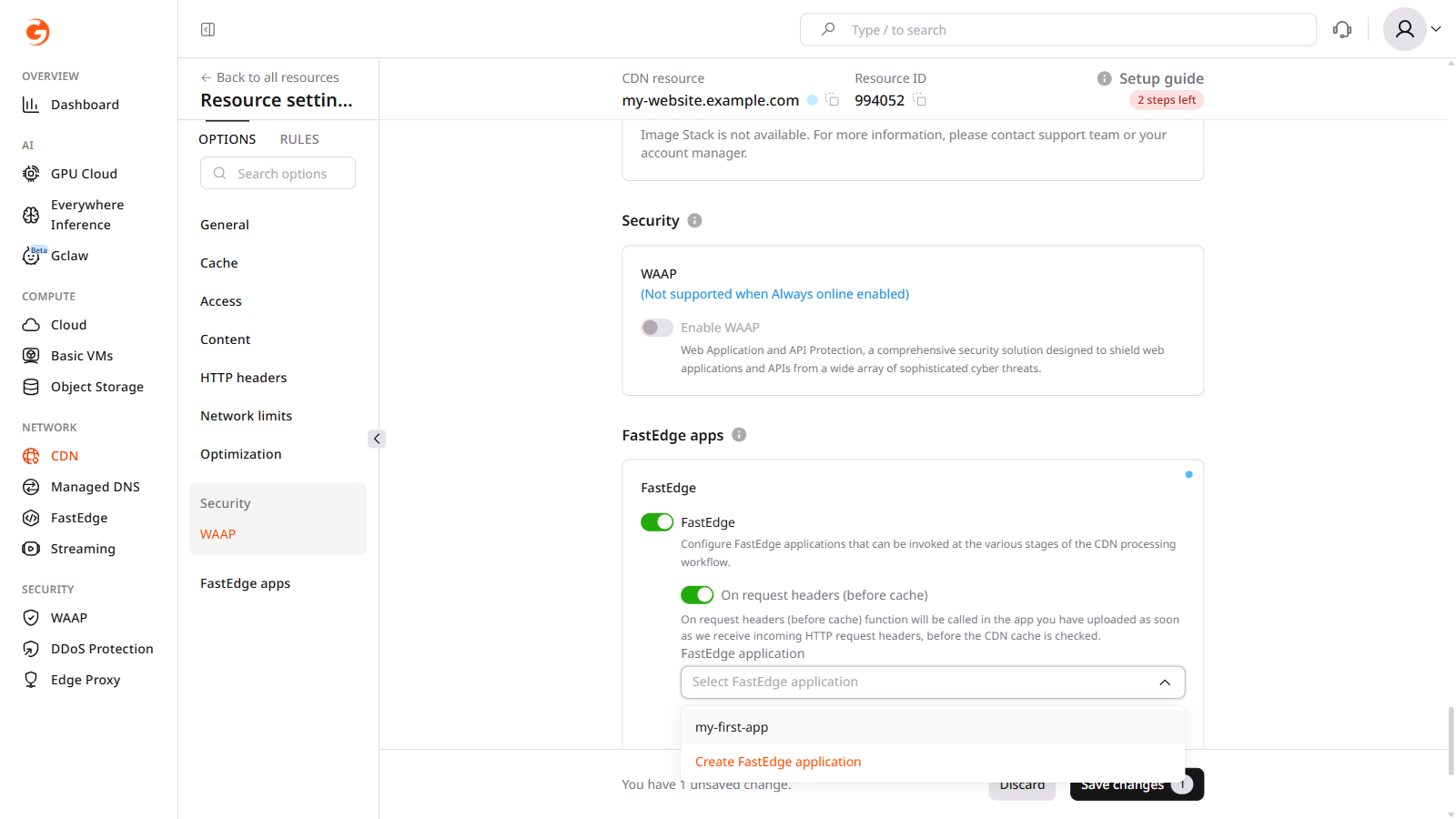
Scroll to the Edgecompute apps section and enable the toggle for the required stage.
Select the application from the dropdown.
(Optional) Select the Interrupt request processing in case of error checkbox.
ℹ️
The Interrupt request processing in case of error checkbox is enabled by default. When active, errors on the Edgecompute side return the relevant response code to the client. When disabled, the CDN ignores the error and forwards the request to the origin. For security-sensitive applications, keep this checkbox enabled.
Click Save.
URL-specific rules apply Edgecompute logic only to certain paths — for example, protecting /api/ with JWT validation while leaving other paths unaffected.
In the Customer Portal, navigate to CDN.
Find the resource and open its settings.
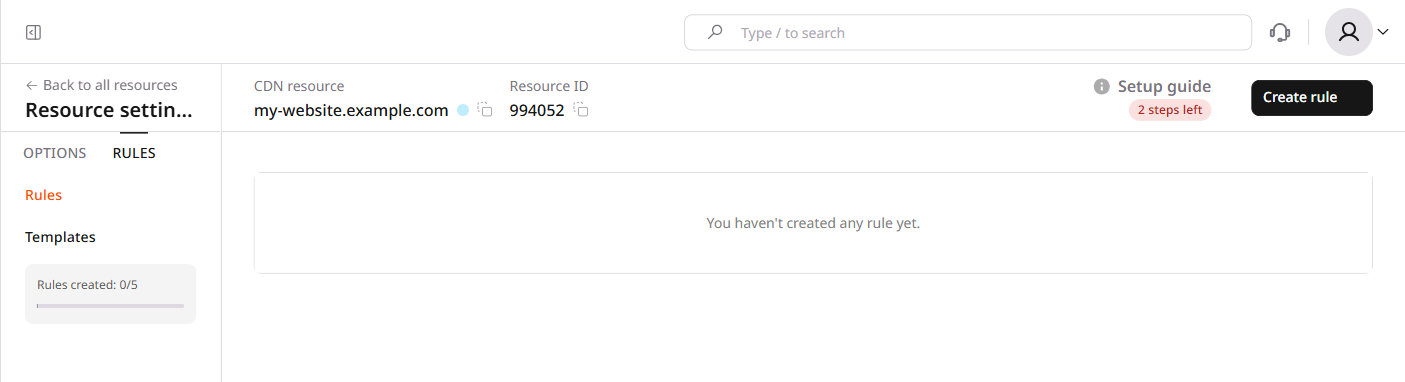
Click Rules > Create rule.
Click Create blank rule.
Enter a rule name.
In the Match criteria section, specify the URL paths affected by the application.
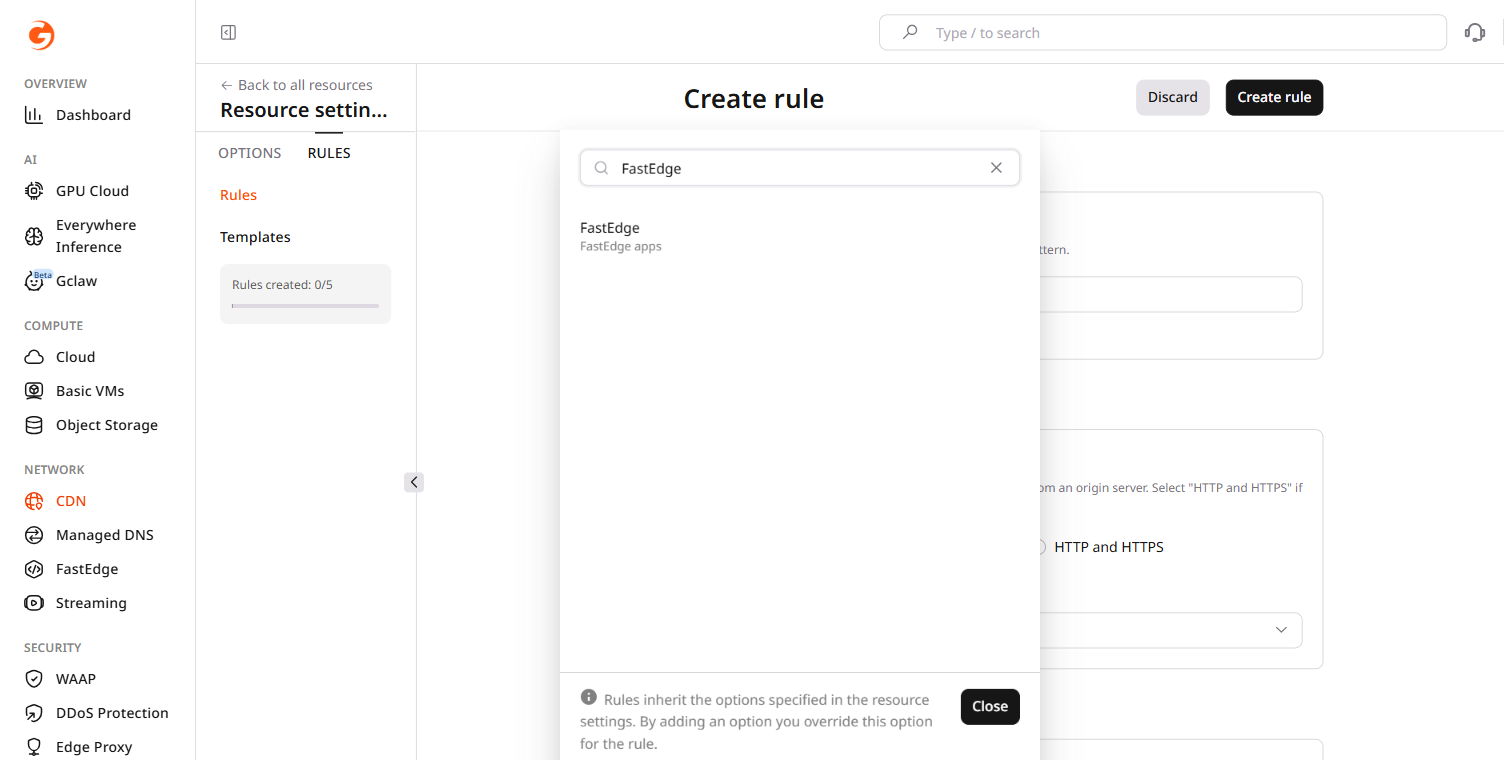
In the Options section, click Add option.
Scroll to the Edgecompute apps section and enable the toggle for the required stage.
Select the application from the dropdown.
(Optional) Select the Interrupt request processing in case of error checkbox.
ℹ️
The Interrupt request processing in case of error checkbox is enabled by default. When active, errors on the Edgecompute side return the relevant response code to the client. When disabled, the CDN ignores the error and forwards the request to the origin.
Click Create rule.
Disconnect Edgecompute from CDN
To stop Edgecompute processing on a CDN resource, disable the configured toggles and save.
In the Customer Portal, navigate to CDN.
Find the resource and open its settings.
To disable Edgecompute for the whole CDN resource, disable the toggles in the Edgecompute apps section.
To disable Edgecompute for specific URL paths, open the Rules page and disable the toggle for the relevant rule.
Click Save changes.
Delete a CDN application
ℹ️
An enabled Edgecompute application linked to a CDN resource cannot be deleted. Disconnect it from the CDN resource first.
In the Customer Portal, navigate to Edgecompute.
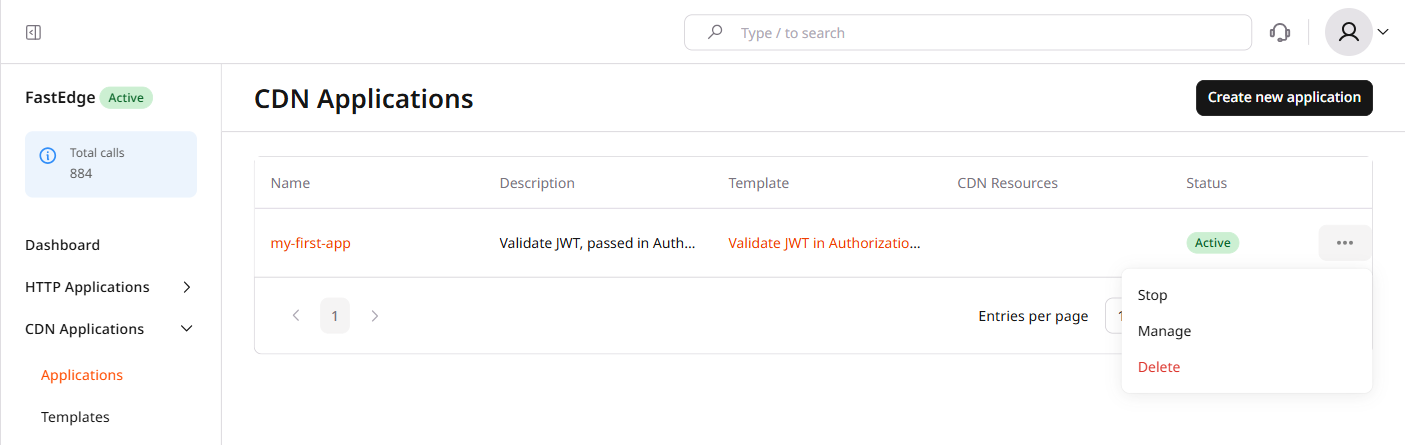
Open the CDN Applications page and click the three-dot icon next to the application.
Click Delete.
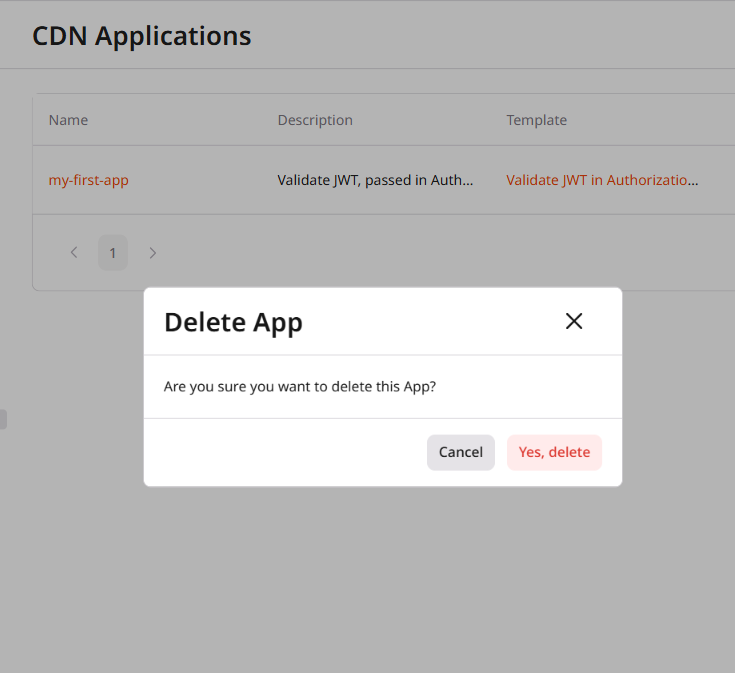
Confirm by clicking Yes, delete.
Edgecompute CDN applications run inside the CDN request pipeline and modify requests and responses before they reach the origin or client.
A CDN resource configured for the origin is required. To create one, use the Create CDN resource API endpoint.
All requests authenticate with an API token. Set it as an environment variable before running the examples:
export GCORE_API_KEY="{YOUR_API_KEY}"
How it works
The CDN runtime invokes a CDN application at five stages of the request lifecycle:
on_request_headers: when the CDN receives request headers, before cache.
on_request_headers_after_cache: when the CDN receives request headers, after cache.
on_request_body: when the CDN receives the request body.
on_response_headers: before the CDN sends response headers to the client.
on_response_body: before the CDN sends the response body to the client.
ℹ️
CDN applications are built on the Proxy-Wasm specification — an open standard for WebAssembly-based proxy extensions.
⚠️
Only one Edgecompute application can be attached to each processing stage.
Step 1. Upload a binary
Upload the compiled .wasm file to the Edgecompute binary store. The API automatically detects the binary type from the file contents.
The response includes the binary ID used in the next step:
{
  "id": 12345,
  "api_type": "proxy-wasm"
}
To deploy from the predefined JWT template instead, list available templates with GET https://api.gcore.com/docs/edgecompute/v1/template, note the template's binary field, and use that binary ID in Step 2.
Step 2. Create a Edgecompute application
Create the application using the binary ID from Step 1. Set status to 1 to activate the application immediately.
Update the CDN resource to route traffic through the Edgecompute application. The fastedge option accepts five trigger stages — configure the ones the application handles.
Replace RESOURCE_ID with the CDN resource ID. The interrupt_on_error field controls behavior on error: true returns the Edgecompute error to the client, false forwards the request to the origin. For security-sensitive applications, set it to true.
An enabled Edgecompute application linked to a CDN resource cannot be deleted. Disable the Edgecompute integration on the CDN resource before deleting the application.