Import and export records
Use import and export to gain more control over DNS records and make domain migration easier.
- 1
Open the domain zone
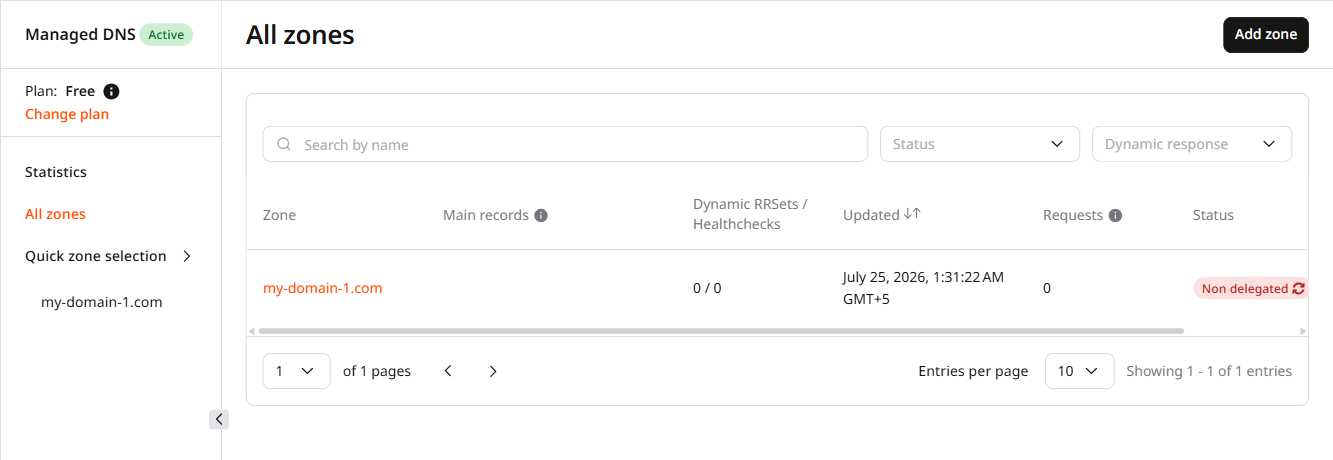
In the CDB Technical Web Portal, navigate to Managed DNS → All zones.
Click the domain zone to open it.
- 2
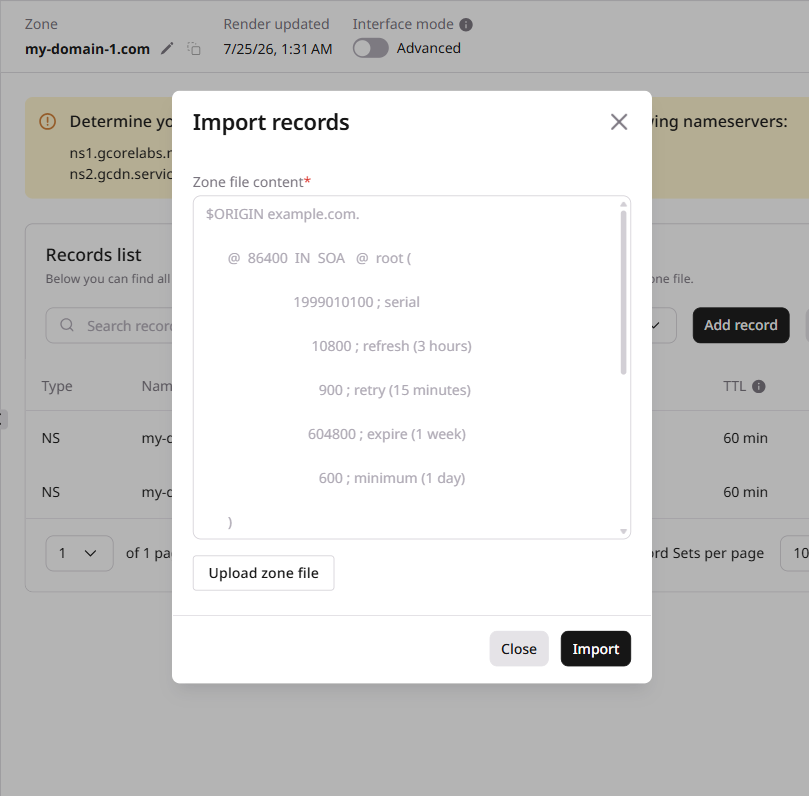
Click Export records or Import records
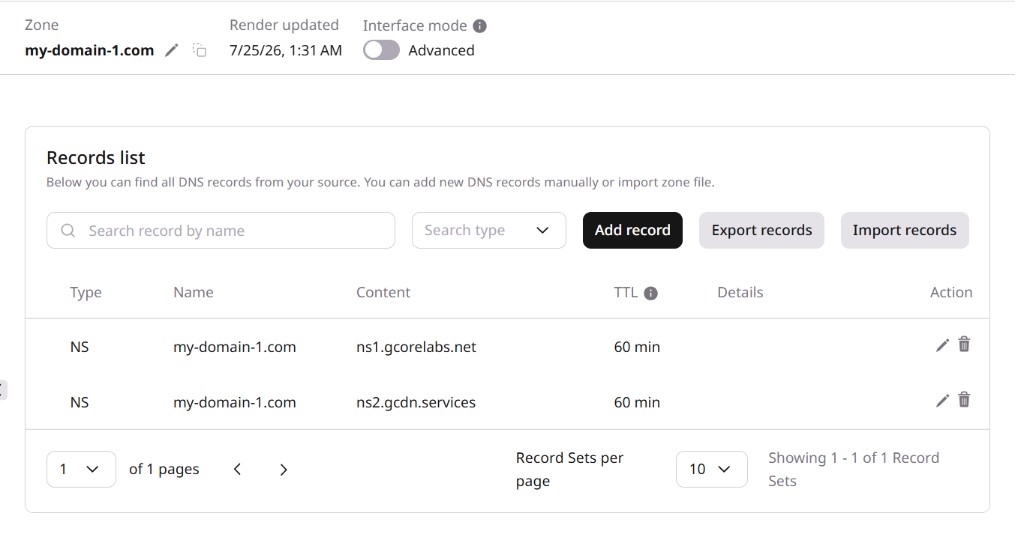
After clicking Export records, the BIND zone file will be downloaded to the local machine as a text file with the .zone extension, e.g.,
sample-test.com.zone.The downloaded file includes domain name, TTL, RRsets, time intervals (refresh, update, and expiry), and the authoritative NS server:
$ORIGIN test.dnsexample.com.
$TTL 300
@ IN SOA ns1.gcorelabs.net. support.gcore.com. (
  1690969313 ; serial number
  5400 ; refresh
  3600 ; update retry
  1209600 ; expiry
  300 ; minimum
)
$TTL 3600
@ IN NS ns1.gcorelabs.net.
@ IN NS ns2.gcdn.services.
$TTL 600
@ IN A 1.2.3.4
@ IN A 4.5.6.7
* IN CNAME sample.domains.com.
* IN CNAME sample-2.domains.com.