Connect Cursor IDE to CDB MCP Server
Cursor IDE supports CDB MCP Server with a tool count limit. Unlike Claude Code, Cursor loads all tool schemas at startup, which causes context window issues when too many tools are active. The active tool count must stay under 50 by using a specific GCORE_TOOLS pattern.
Prerequisites
- CDB API token with permissions for the operations to perform
- uv package manager installed
- Cursor IDE 0.40 or later
Step 1. Add CDB MCP Server to Cursor
Open the Cursor MCP configuration file:
notepad $env:USERPROFILE\.cursor\mcp.json
Add the gcore-mcp-server entry to the mcpServers object. If the file is empty, create it with the full structure shown below.
{
  "mcpServers": {
    "gcore-mcp-server": {
      "command": "uvx",
      "args": [
        "--from",
        "gcore-mcp-server@git+https://github.com/G-Core/gcore-mcp-server.git",
        "gcore-mcp-server"
      ],
      "env": {
        "GCORE_API_KEY": "your-api-key",
        "GCORE_TOOLS": "dns.*"
      }
    }
  }
}
Replace your-api-key with the CDB API token.
Do not set GCORE_TOOLS=* in Cursor IDE. Cursor loads all tool schemas at startup — with 720 tools, the client becomes unresponsive or selects incorrect tools. Always specify a product pattern. Each product pattern stays well under the 50-tool limit: dns.* loads approximately 35 tools, storage.* approximately 40, and edgecompute.* approximately 20.
If the file already contains other MCP servers, add the gcore-mcp-server block inside the existing mcpServers object without removing other entries.
Step 2. Verify the connection
Restart Cursor to load the new configuration. Open Settings and navigate to Features → MCP. The gcore-mcp-server entry appears with a green indicator and lists the loaded tools.
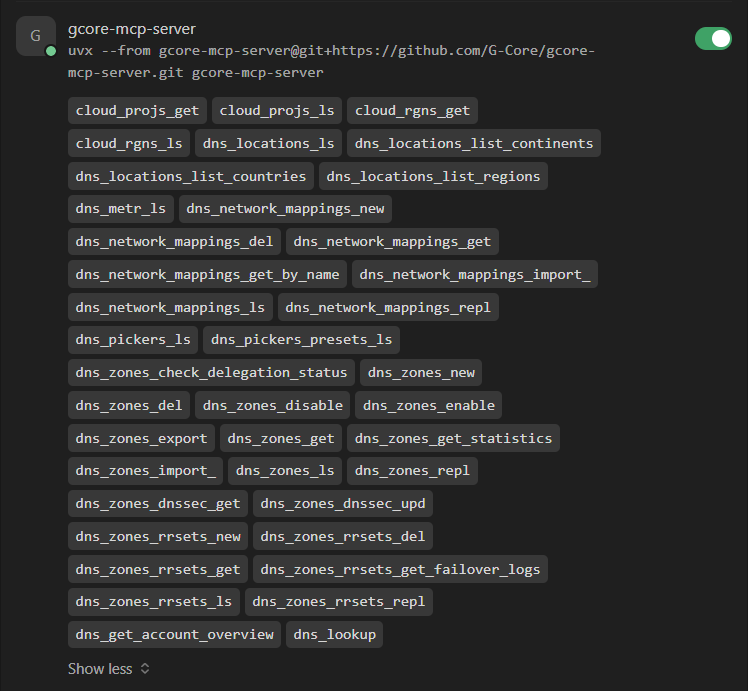
If the server does not appear in MCP settings, verify that the mcp.json file has valid JSON syntax — a missing comma or bracket prevents loading. Check that uv is installed (uv --version) and restart Cursor fully (quit and reopen, not just reload the window).
Step 3. Test with a query
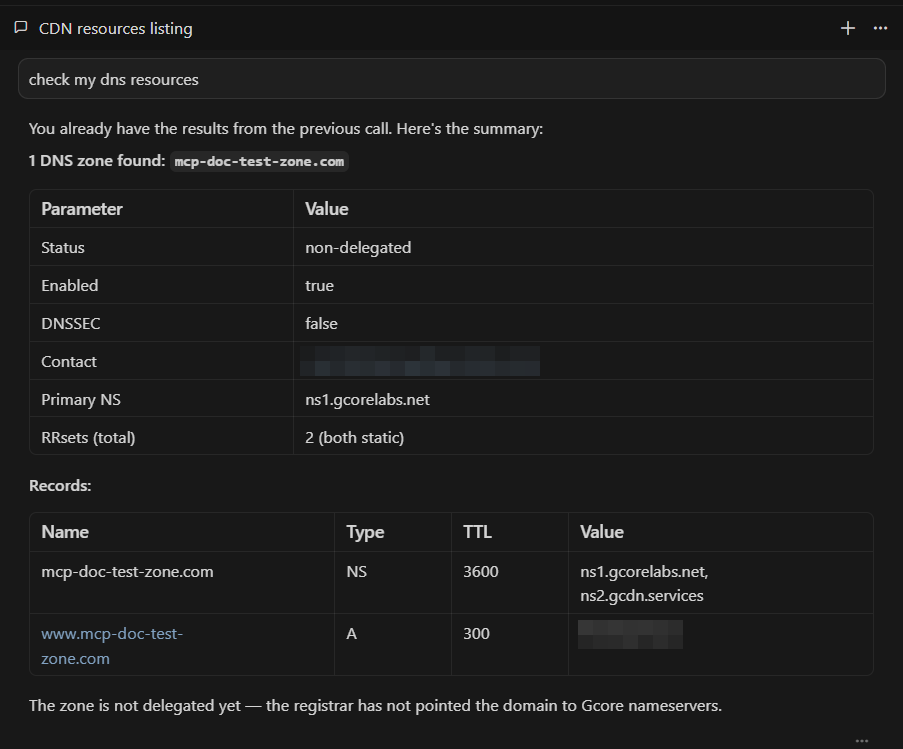
Open a Cursor chat and ask a question using the connected product. With GCORE_TOOLS="dns.*":
List my DNS zones
A successful response displays DNS zones with their names, record counts, and status.
If tools are not available in chat, confirm the GCORE_API_KEY value has no extra spaces or quotes, verify the token is active in the CDB Technical Web Portal, and check that the GCORE_TOOLS pattern matches at least one tool name. Use MCP Inspector to verify the pattern. Requests returning "401 Unauthorized" indicate an invalid or expired token — see API token permissions for required roles.
Switch to a different product
To work with a different CDB product, update the GCORE_TOOLS value in mcp.json and restart Cursor.
| Product | Pattern | Approximate tool count |
|---|---|---|
| DNS | dns.* | 35 |
| Storage | storage.* | 40 |
| CDB EdgeCompute | edgecompute.* | 20 |
| IAM | iam.* | 20 |
| Streaming | streaming.* | 60 |
| CDN | cdn.cdn_resources.* | ~15 |
| Cloud (basic) | management,instances | ~25 |
For workflows involving multiple products, combine patterns and verify the total stays under 50:
"GCORE_TOOLS": "dns.*,management"
Use MCP Inspector to count tools for any pattern before adding it to the Cursor config.